Ask Jira Where the Time Went: Meet the ChronoFlow Rovo Agent
The ChronoFlow Agent brings time in status into Rovo. Ask about an issue in plain language and get its working time per status and per assignee, or describe a report and get a saved ChronoFlow report back.
A common question about a Jira issue is how long it has spent in each status, and with whom.
Answering it by hand means opening the issue history, noting when each status change happened, subtracting the timestamps, and then taking out nights, weekends and holidays. It’s doable for one issue, but slow.
ChronoFlow already calculates this in its reports, and in our previous post we covered how it stores the value on every issue as a custom field. This post covers a third option: asking in plain language. ChronoFlow includes its own Rovo agent, the ChronoFlow Agent, available in Jira wherever Rovo is.
What you can ask it
The agent has a deliberately narrow job. It knows how long issues spend in each status, how long each assignee held them, and how to build a ChronoFlow report. When you open it, it suggests the three things people ask most:
- “How much time has this issue spent in each status?”: a status-by-status breakdown in working hours.
- “How much time did each assignee spend on this issue?”: the same history, split by who had the issue at the time.
- “Create a new ChronoFlow report”: a saved report, built through conversation instead of a form.
Ask from an issue and it already knows which issue you mean. Ask from anywhere else and give it the key.
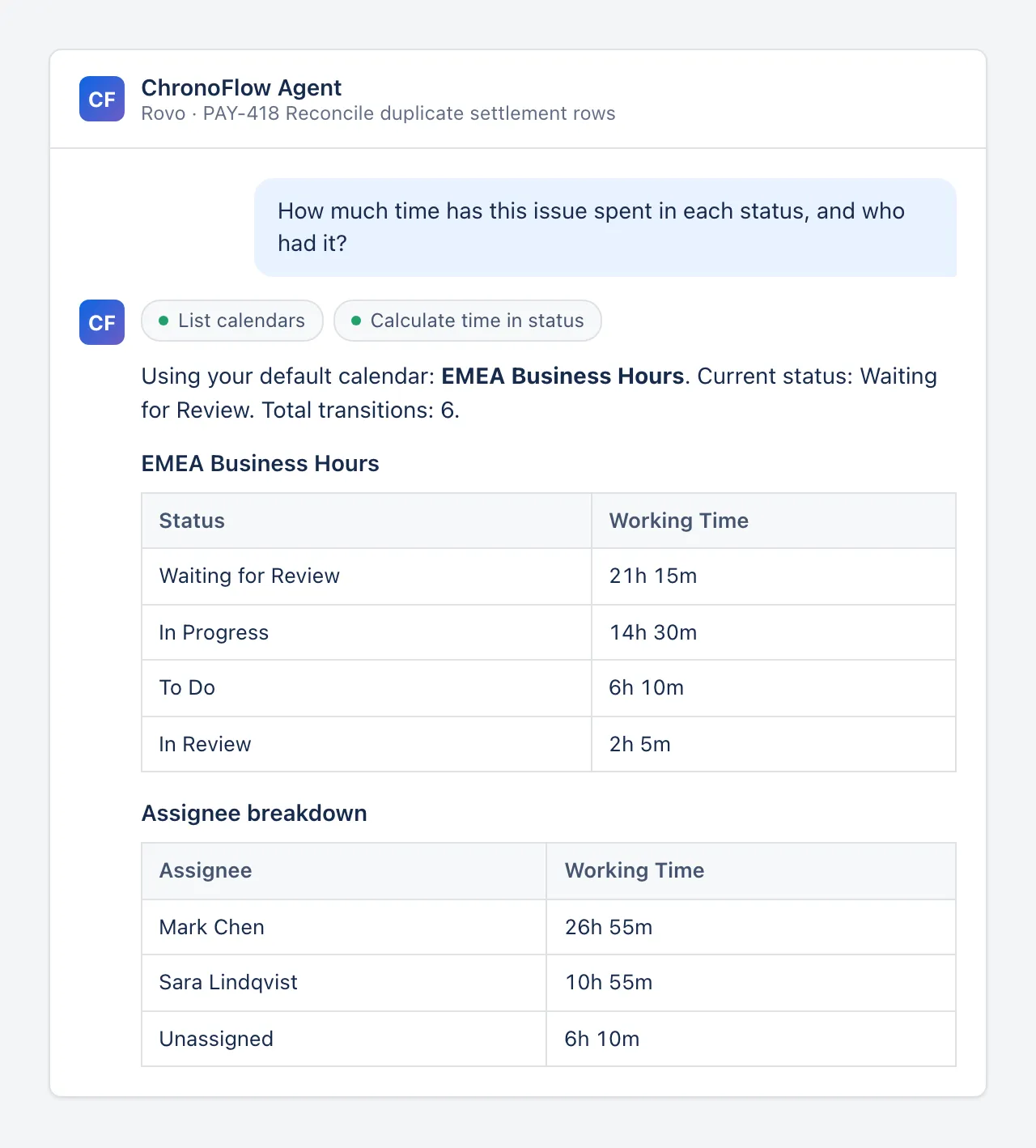
Results are always shown as Jira tables. Internal IDs are never shown; you only see status, calendar and user names.
Working hours, not clock hours
Time that includes nights and weekends overstates how long work actually waited. So before calculating anything, the agent checks which working calendar to use: the working days, hours, time zone and holidays you configured in ChronoFlow, as we described in the overview post.
The first time, the agent shows you the configured calendars and lets you choose. It remembers your choice as your personal default for later use. To reset it, ask the agent to clear your default calendar. If the saved calendar is deleted later, the agent clears the default automatically.
If no calendars exist yet, the agent doesn’t fall back to 24/7 time. It gives you a link to the calendar settings page instead.
The agent talks, ChronoFlow counts
The language model never does the arithmetic. It reads your question, decides which ChronoFlow action can answer it, and passes that action the right inputs. The calculation itself runs in ChronoFlow, on the same engine that produces its reports.
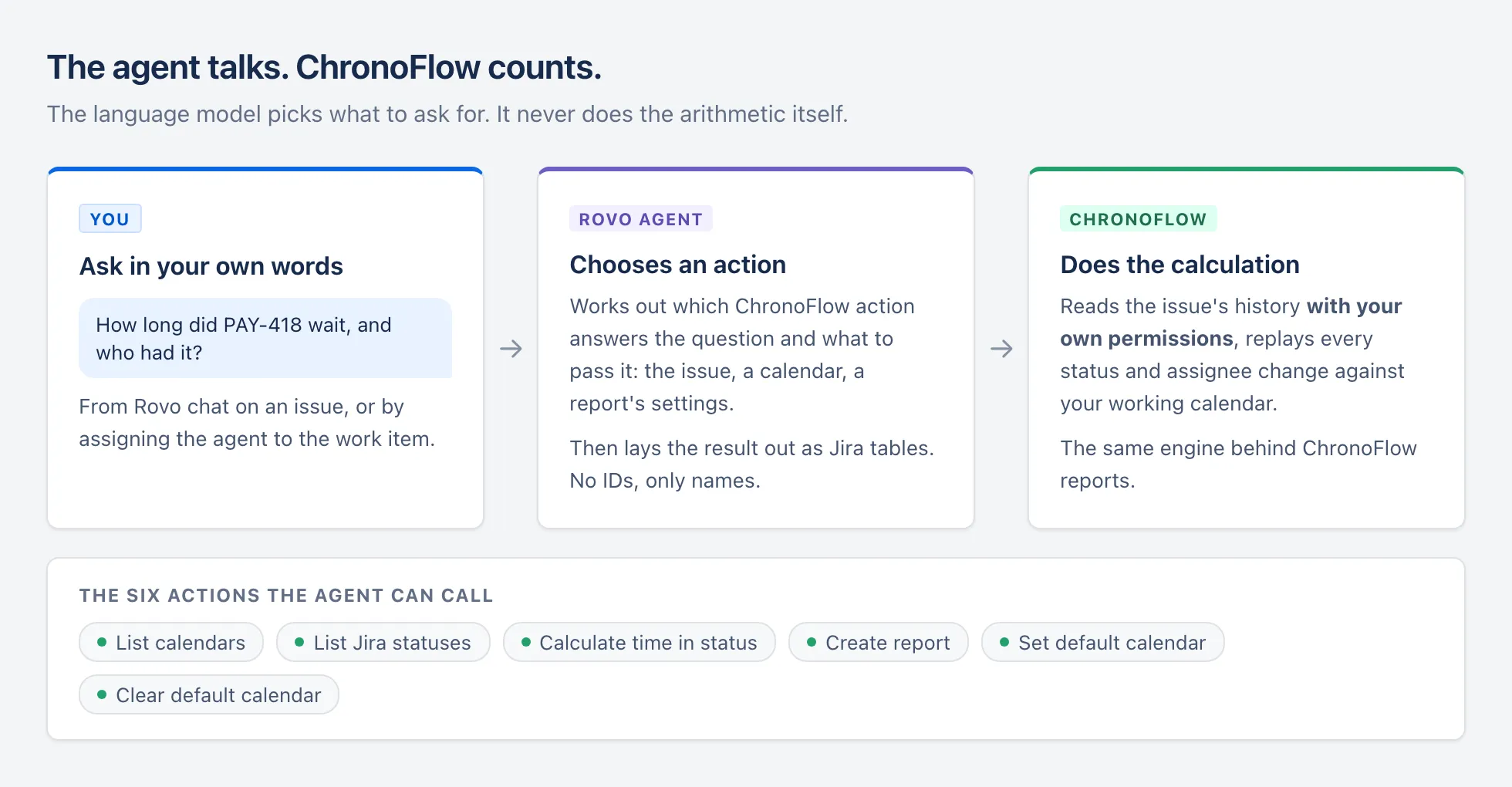
When you ask about an issue, ChronoFlow reads that issue’s full change history and replays it. Each stretch of that timeline is measured against your working calendar, which is how the same history produces a per-status table and a per-assignee table that add up to the same total. Time when nobody was assigned is listed as “Unassigned”.
Every one of those reads happens with your own Jira permissions. The agent can’t show you an issue you couldn’t open yourself, and a report it creates is saved under your name, exactly as if you’d built it by hand.
Turning a question into a report
To look at many issues instead of one, you need a report. The agent can create one in two ways.
Step by step, it asks one question at a time: a name for the report, which issues to include, the calendar, which statuses to show, any extra Jira fields to add as columns, and whether to count every visit to a status or only the most recent one.
All at once, it first shows you the exact statuses, metrics (Lead Time, Cycle Time, Response Time) and status groups that exist on your site, then you reply with everything in a single message.
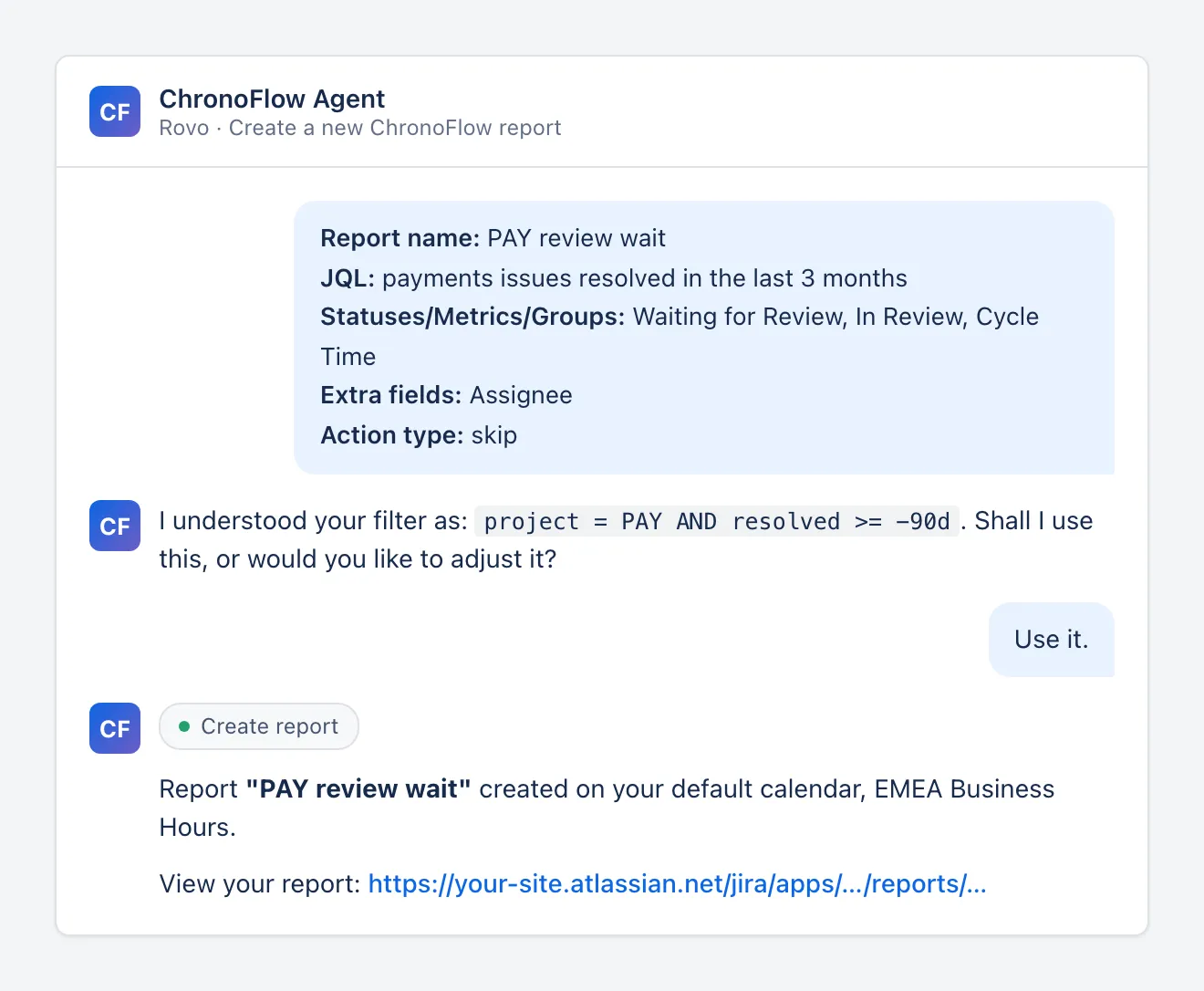
You don’t have to write JQL. Describe the filter in your own words, in English or any other language, and the agent turns it into JQL and shows it to you before using it. Jira’s own JQL parser then checks the query before anything is saved.
The names are checked too. Every status, calendar and field you mention is matched against what actually exists on your Jira site, and when two projects have a status with the same name, the list shows them with the project key, like “In Progress (PAY)”, so you can tell them apart. If something doesn’t match, the agent tells you which part was wrong and asks only for that part again, keeping everything else you already gave it.
Assigning the agent to an issue
Rovo agents can be assigned to Jira work items, and the ChronoFlow Agent has one fixed behaviour when that happens: it calculates straight away, asks nothing, and posts the result on the issue.
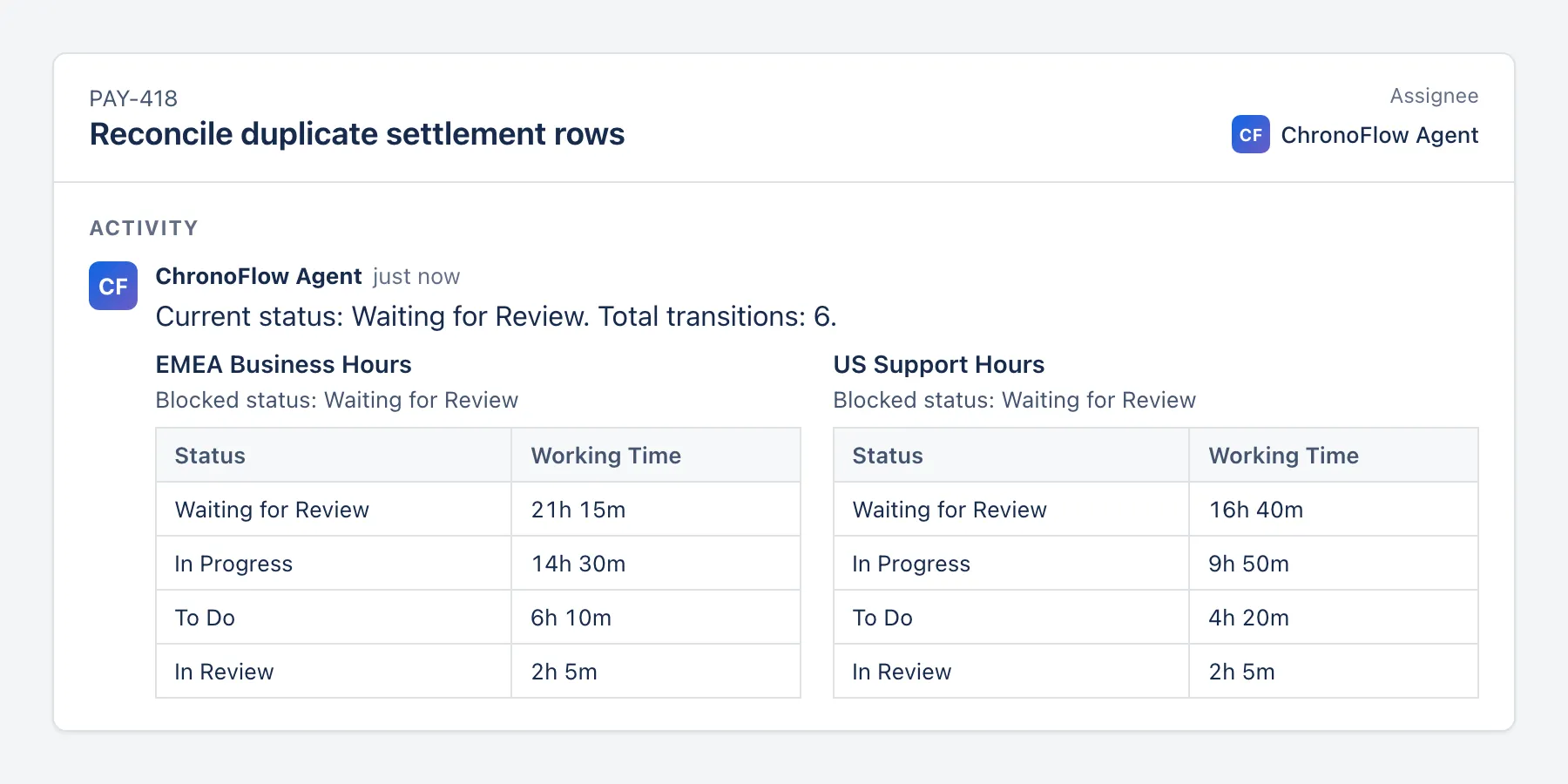
Since there’s no one to pick a calendar in this flow, it reports on all of your calendars side by side, and marks the status that held the issue longest as the blocked status. This is useful for teams in different regions, since the same wait comes out differently on EMEA hours and on US hours.
An example: PAY-418
Here is how this works on a single issue. PAY-418, “Reconcile duplicate settlement rows”, belongs to a payments team whose calendar, EMEA Business Hours, runs 09:00 to 18:00, Monday to Friday. The question asked in Rovo is: how much time has this issue spent in each status, and who had it?
Since a default calendar is saved, the agent calculates right away. PAY-418 has used 44 working hours so far: 14h 30m in In Progress, 21h 15m in Waiting for Review, 6h 10m in To Do and 2h 5m in In Review.
The assignee table adds the second part. Mark Chen held the issue for 26h 55m, which is his 14h 30m in In Progress plus 12h 25m of Waiting for Review, while the issue was still assigned to him. Sara Lindqvist held it for 10h 55m, including the 2h 5m of review. So most of the waiting happened before a reviewer was assigned, and the review itself was short.
To see whether this is typical, a report can be created in one message: name “PAY review wait”, filter “payments issues resolved in the last 3 months”, statuses Waiting for Review, In Review and Cycle Time, with Assignee as an extra column. The agent converts the filter to project = PAY AND resolved >= -90d, asks for confirmation, and returns a link to the saved report. If the report shows the same pattern across the quarter, assigning a reviewer as soon as an issue enters Waiting for Review is a reasonable change to try.
The ChronoFlow Agent is included with ChronoFlow on the Atlassian Marketplace.