Let the Issue Write Its Own Label: Barcodes From a Jira Expression
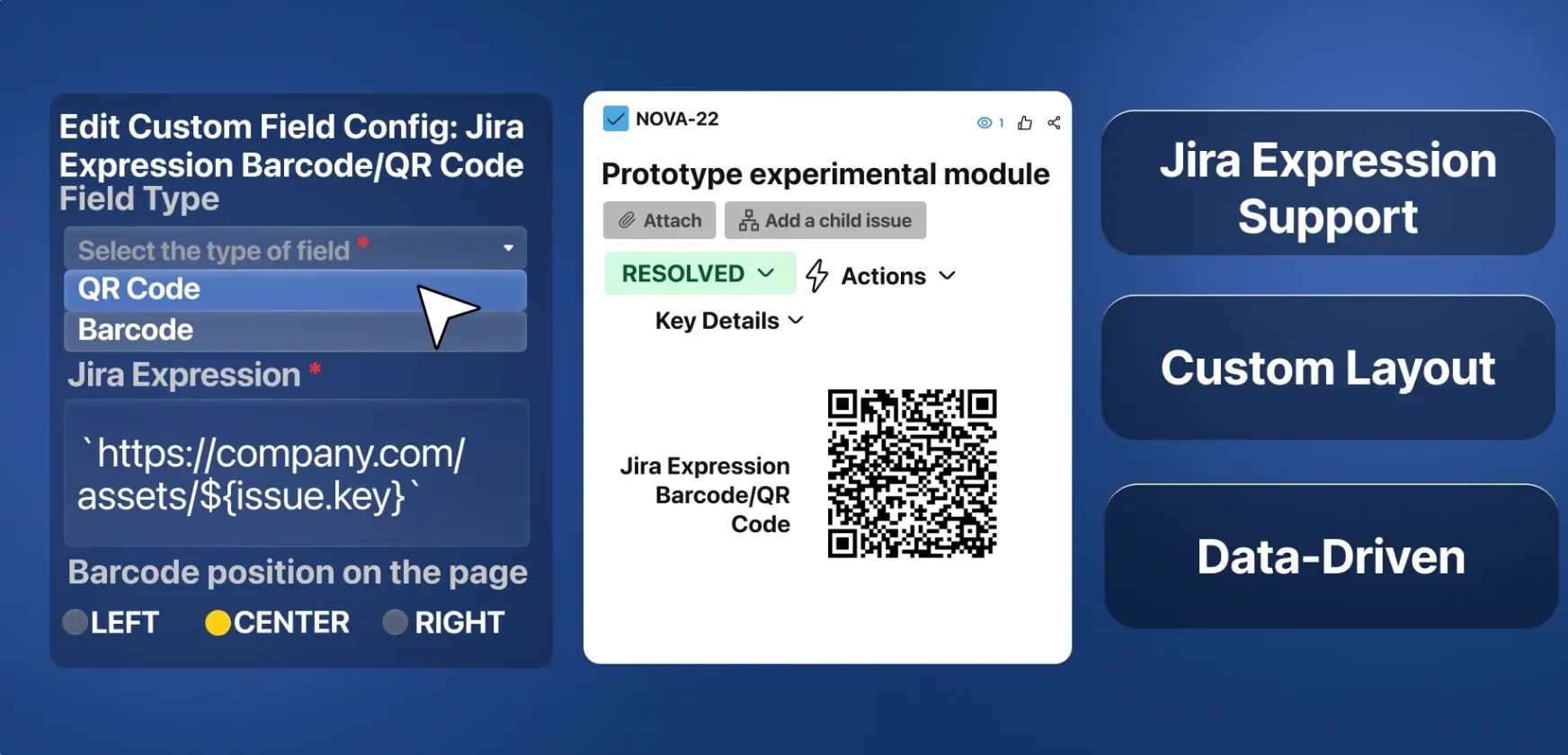
The Jira Expression Barcode field decides what a barcode or QR code encodes by running a Jira expression, so each issue builds its own label from its key, status, assignee, or any other field.
This is the third post on Barcode/QR Custom Field. The first one covered the Issue URL Barcode field, which always encodes the issue’s own Jira link. The second covered the Editable Barcode field, which holds whatever text someone types into it. Neither helps when the label should be built from the issue’s other fields, say its key inside a link to a file server, or its current status and assignee. The Jira Expression Barcode field handles that case: you write a Jira expression once, and every issue evaluates it against its own fields to decide what its code encodes.
Writing the expression
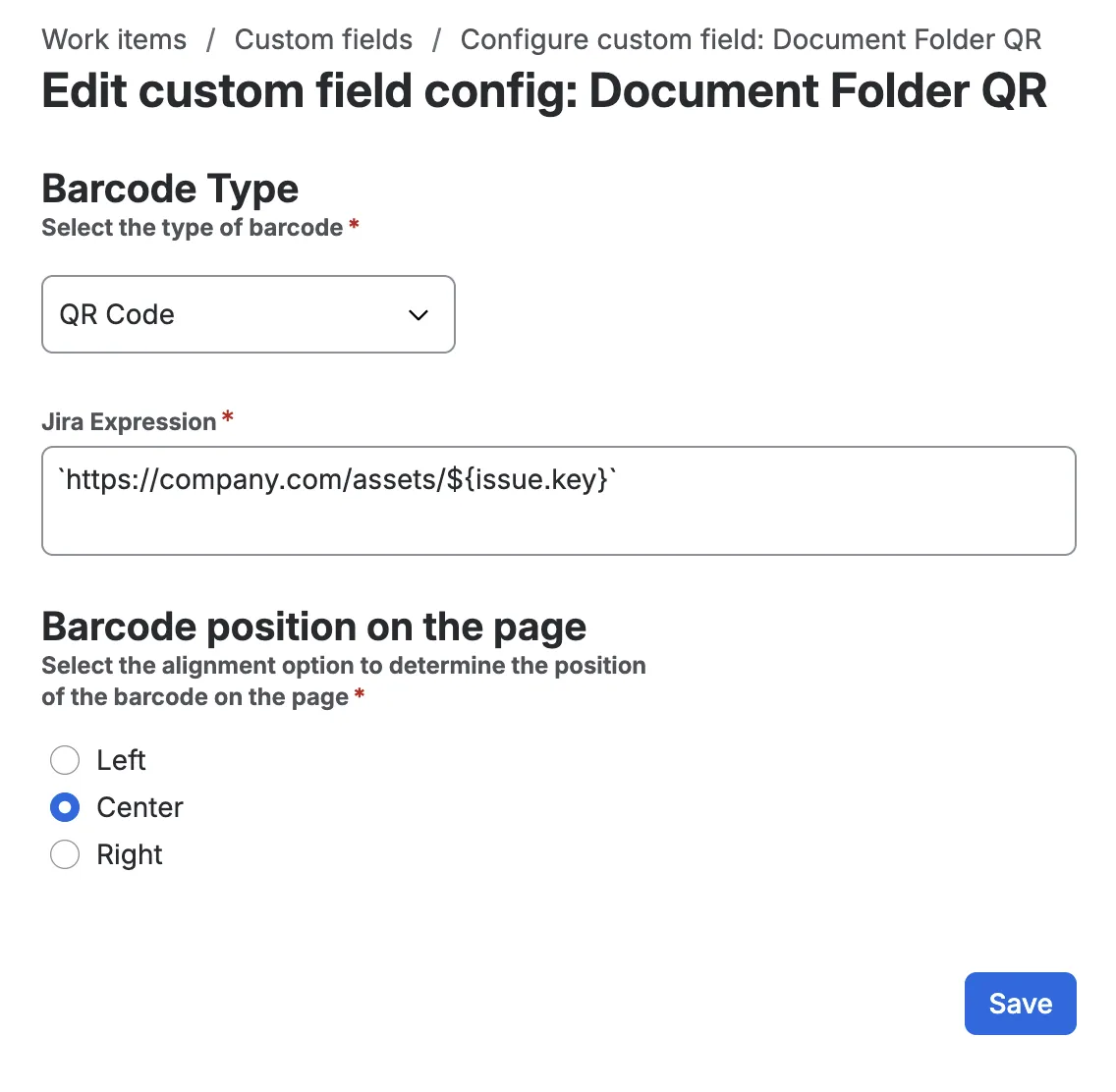
Between the barcode type and the position setting, the configuration screen has a Jira Expression text area. Whatever you write there runs on Jira’s own expression engine, the same one behind Jira’s workflow validators and conditions, and its result is the text that gets drawn as the code.
On save, the app checks what type the expression returns. String, number, boolean, date and datetime are accepted, since each prints cleanly as text on a label. A list like issue.labels is rejected, so join it into one string first, for example issue.labels.join(', ').
What shows up on the issue
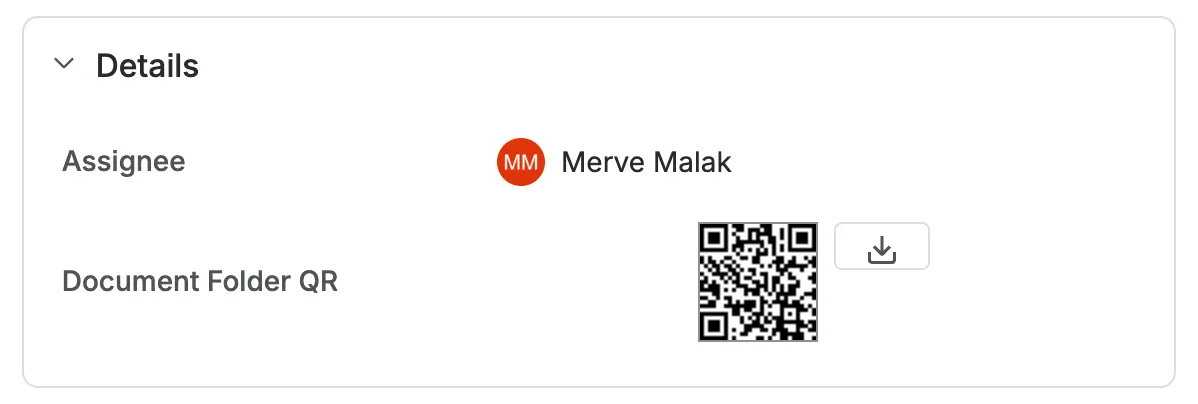
The field renders the expression’s result on the issue as a barcode or QR code, with a download button beside it. The button opens the same print dialog as in the other two fields: pick a size and paper format, and the app builds a PDF named after the issue so a printed label never gets mixed up with another ticket.
Example use cases
Linking an issue to its files on another server
Plenty of teams keep a task’s drawings, photos and spec sheets on a file server, in a folder named after the Jira key. Attaching all of them to the issue one by one means a second copy that goes stale, and people outside Jira can’t open it anyway. An expression can build the folder’s address from the key instead:
`https://company.com/assets/${issue.key}`Each issue now carries a QR code for its own folder. Scan it and you land in the right place, and you can print it or send it to a supplier who has access to the file server but no Jira account.
A due date you can read off the shelf
If you stage physical items on a shelf, the issue’s due date can go on the label:
`${issue.dueDate ? issue.dueDate : 'NO DUE DATE'}`The label now carries the date itself, so anyone walking the shelf reads the deadline off the code without opening Jira. An issue with no due date gets NO DUE DATE on its label instead of an empty code. Reprint it if the due date moves, since paper holds whatever the date was at print time.
A status summary on a physical Kanban card
Say a team runs its daily standup at a physical board, one printed card per task. Opening laptops to check where each task stands slows the meeting down, so they give the task issue type a Jira Expression Barcode field with this expression:
`${issue.status.name.toUpperCase()} - ${issue.assignee ? issue.assignee.displayName : 'UNASSIGNED'} | Labels: ${issue.labels.length > 0 ? issue.labels.join('/') : '-'}`A new task that nobody has picked up yet encodes as TO DO - UNASSIGNED | Labels: -. Once it’s assigned, moved to In Progress and labelled, the same field on the issue shows the new status, the assignee’s name and the labels joined with slashes. The card is printed from that same download button, and during the standup anyone can point a phone at a card and read the summary off the screen.
The printed code holds what the issue looked like at print time. The field on the issue updates every time the issue is opened, but paper doesn’t, so the team reprints a card when it moves to a new column, which is when someone is already handling it.
Barcode/QR Custom Field is on the Atlassian Marketplace, if you want to try your own expressions on your issues. Atlassian’s Jira expressions reference lists every field and function you can use.