Turn Any Text Into a Jira Barcode: Keep the Tag the Asset Already Has
The Editable Barcode field lets a Jira issue carry an existing asset tag, serial, or SKU and render it as a scannable barcode or QR code, so you reuse the numbers your gear already has instead of reprinting them.
Most equipment that ends up tracked in Jira already had a life before Jira. A forklift or a rented compressor arrives with a tag, a sticker, or a serial number already stamped on it by whoever owned the numbering scheme first. The problem shows up the moment a team tries to bring that equipment into Jira for maintenance or asset tracking: do you re-tag every single item to match a Jira issue key, or do you find some other way to make the two numbers agree?
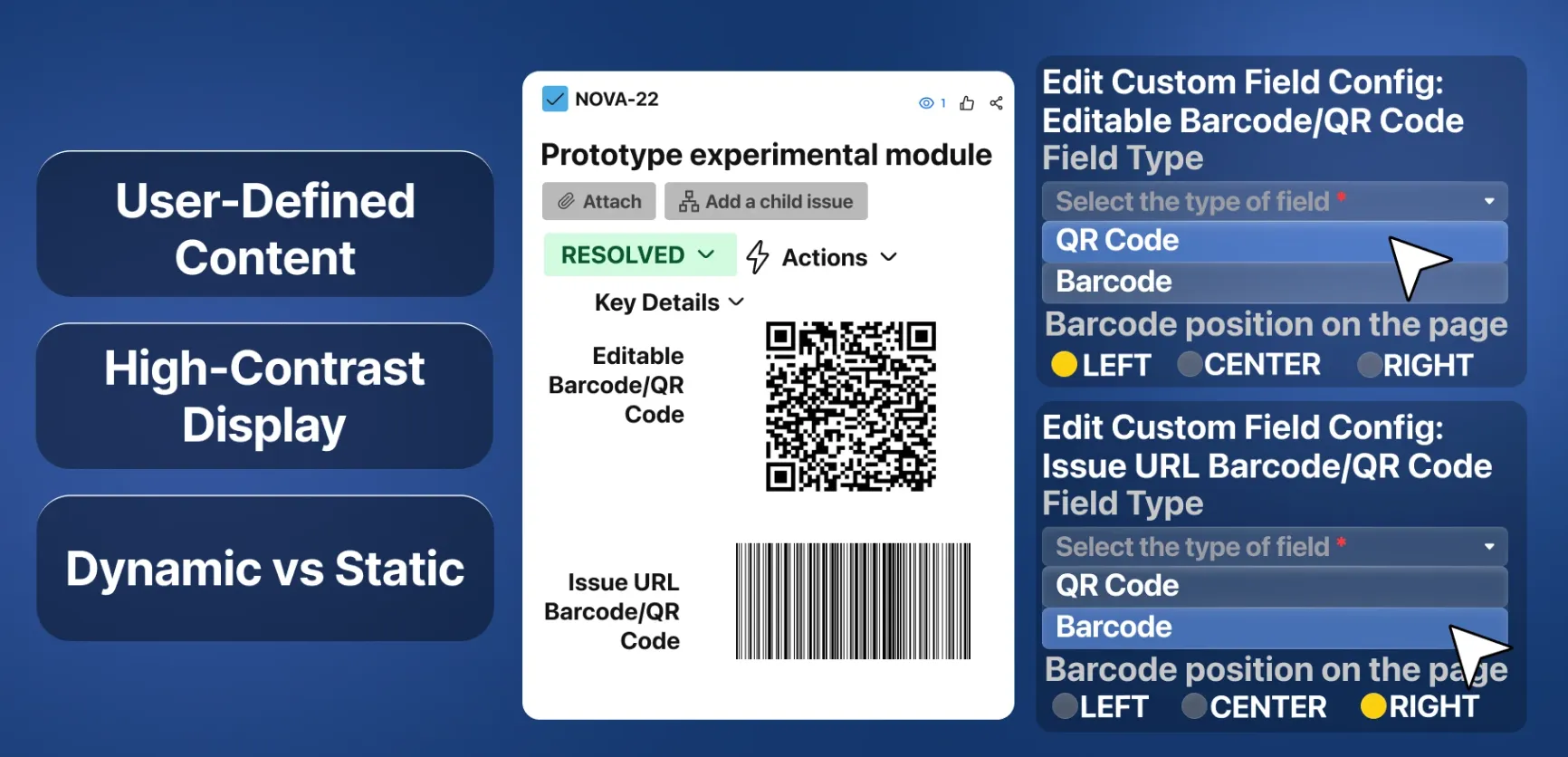
Barcode/QR Custom Field’s Editable Barcode field is built for exactly that second option. Our previous post covered the Issue URL Barcode field, which always encodes the issue’s own Jira link and nothing else. This field is different: it holds whatever text a person types or scans into it, a serial number, an existing asset tag, a SKU pulled from another system, and renders that value as a barcode or QR code instead.
What’s different from the read-only field
Add the Editable Barcode field to an issue type and it shows up as a plain text box on the issue, in the create screen, on transitions, and even on a customer portal request if the field is exposed there. Type a value in, save it, and the field switches to showing that exact text as a barcode or QR code image, using the same download-and-print flow from the first post: pick a size and paper format, and the app builds a PDF named after the issue so the printed label never gets mixed up with a different ticket. The difference is entirely in where the text comes from. The Issue URL field computes it from the issue’s own address every time it renders. The Editable field just stores whatever you gave it, the same way a normal text field would, and turns that into a scannable image on top.
If your equipment already has a manufacturer serial number, an ERP asset code, or a warehouse SKU, you don’t need Jira’s own identity to matter to the label at all. The label needs to carry the number that’s already on the equipment, and Jira needs to draw it, print it, and re-print it on demand.
If the field is configured for Code128 rather than QR, the value you type has to stay within the ASCII character range, plain letters, numbers, and standard punctuation. If you want to encode any text be sure to select QR type.
An Example Usage Scenario
Say an IT team logs faulty laptops as Jira issues, and every laptop already wears an asset number from the company’s device inventory, printed on a sticker on the base. Reprinting those to match a Jira key would mean re-labelling every machine and breaking the number the inventory system and the help desk have used for years. So when a faulty laptop comes in, whoever handles the issue types the device’s existing number straight into the Editable Barcode field, either on the create screen or later on the issue itself, no renumbering involved.
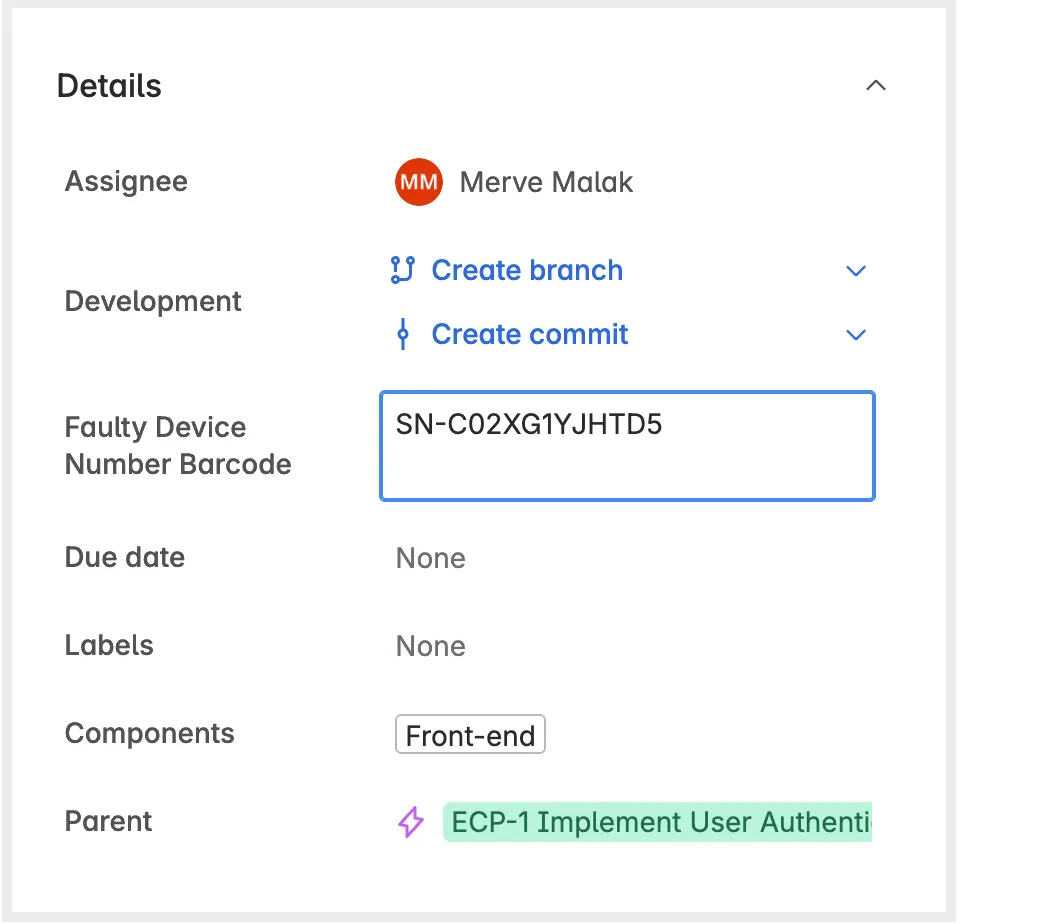
Save the issue and the field renders that same number as a barcode, ready to download and print with the size-and-paper flow from the first post. The label still says exactly what the asset sticker always said, so the existing handheld scanners and the inventory system keep reading the value they always have.
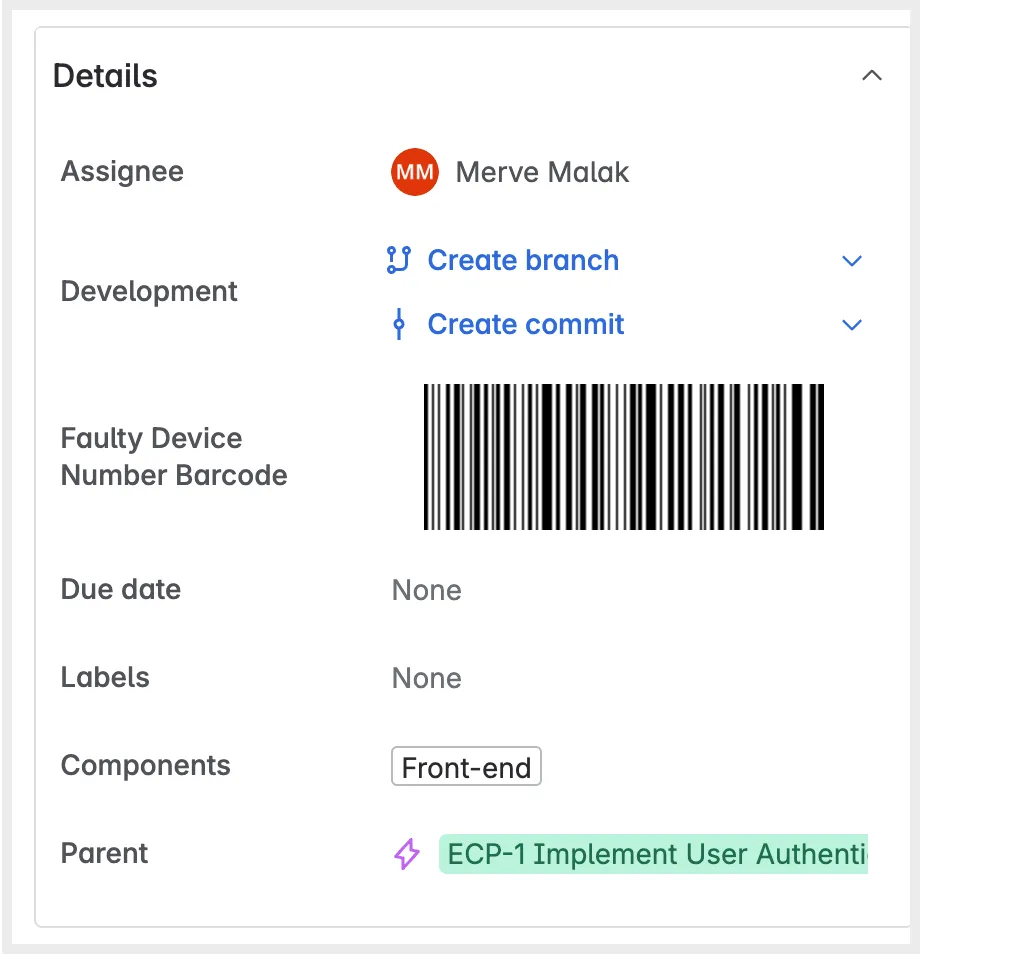
The field also works in JQL. Each time the same laptop comes back, the new issue gets the same number in the field, so a search like "Faulty Device Number Barcode" = "SN-C02XG1YJHTD5" lists every issue ever opened for that device. The help desk can see the laptop’s full repair history in one list before deciding whether to fix it again or replace it.
Laptop stickers get scratched, peeled, and taped over. When one stops scanning, anyone can search Jira for the device number, open the issue, and download a fresh label with the same text, with no trip back to whoever manages the separate asset system.
The next post in this series looks at the Jira Expression Barcode field, where the value on the label is computed from other fields on the issue. Barcode/QR Custom Field is on the Atlassian Marketplace, if you want to try it on your own issues.