Tracking Per-Component Versions in Jira with the Subcomponent Version Picker
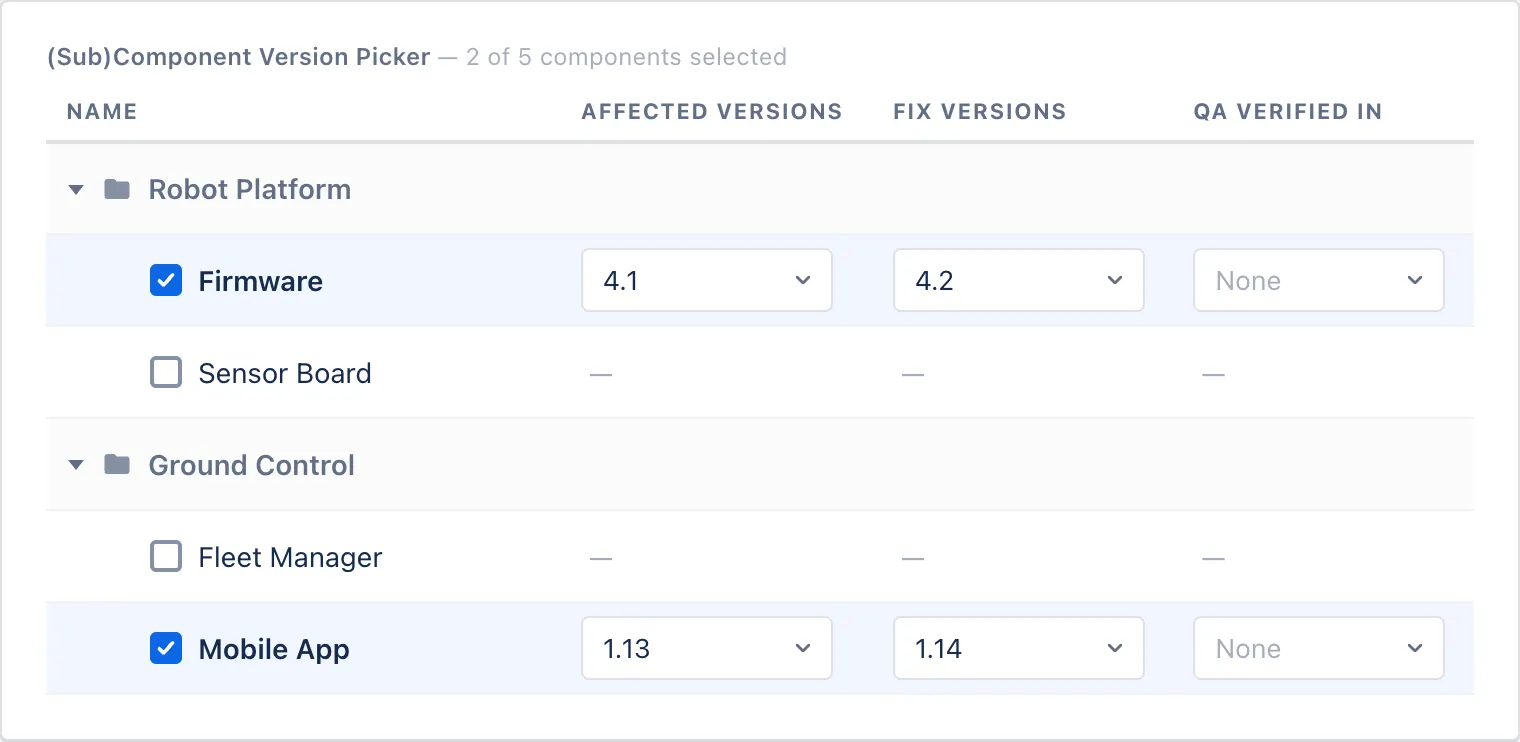
A Jira issue's Components field and its version fields are independent lists, so nothing records which version belongs to which component. The Subcomponent Version Picker turns them into a grid: a row for every component or subcomponent, and a column for Fix Versions, Affected Versions and any version custom field you've added yourself.
Open a Jira issue that touches two components and you get two independent lists. Components says Android and iOS. Fix versions says 1.0.0 and 2.0.0. Nothing on that issue records that Android is fixed in 1.0.0 while iOS is fixed in 2.0.0. You have four values sitting next to each other and the pairing lives in the head of whoever filled the fields in.
Fix versions is only the most obvious case. Affected versions has the same hole, and so does every version custom field you’ve added on top of them: a QA Verified In, a Target Release, a Found In Build. Each one is a flat list on an issue that may touch several components, and not one of them can say which value belongs to which.
That gets expensive around release time. The release page for 1.0.0 lists the issue, so does the one for 2.0.0, and neither can tell you which half of the work actually shipped in it.
The Subcomponent Version Picker, part of the Software Configuration Management Toolkit, replaces that guesswork with a grid. Rows are components. Columns are version fields. Each cell holds one version, so the pairing is recorded on the issue instead of remembered.
A grid instead of flat lists
An admin creates the field once (in Jira’s custom field list it appears as (Sub)Component Version Picker) and adds it to the screens where it should show up: create, edit, view, or a specific transition.
On the issue, the field renders as a small table. The first column lists the project’s components: hierarchical components if you’ve built a subcomponent hierarchy, the project’s plain component list if you haven’t.
The remaining columns are version fields. You choose which ones become columns when you configure the field. By default you get two, Affected Versions and Fix Versions. Beyond those, any multi-value version custom field already in your Jira can be added as a column, so a team that tracks its own QA Verified In or Target Release gets that per component as well.
Every column gets its own dropdown on every ticked row. One component can carry three or four different version numbers on the same issue, each meaning something different.
Which versions a cell offers
The dropdown in a cell isn’t the whole project version list by default. The field has three settings for where its options come from:
- Only Component Version: nothing but versions created against that exact component on the toolkit’s Component Versions page.
- All Project Versions: every version defined on the project, for every row.
- All Project Versions If Component Has No Version: per-component versions where they exist, the project list where they don’t. The one to pick while a team is still moving over.
Grouping and order come from the same configuration screen. Versions arrive split into Released and Unreleased, sorted either by release date or by semantic version number, whichever the admin chose.
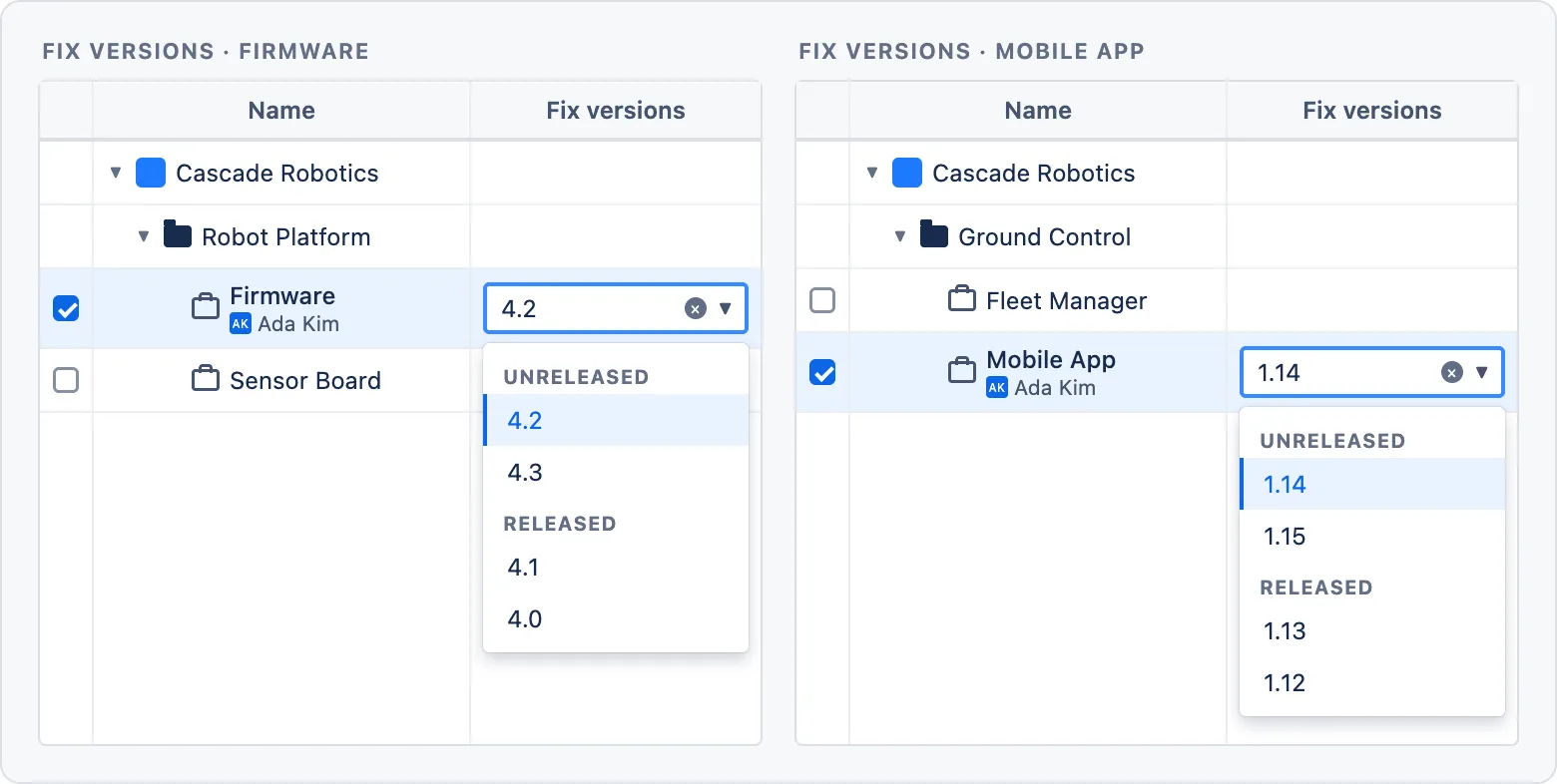
Two smaller switches shape the list further. Released versions can be dropped from the Fix Versions column, so nobody promises a fix in a version that already shipped. Unreleased versions can be dropped from the Affected Versions column, so nobody reports a bug against a version that doesn’t exist yet. There’s also a cap on how many components one issue may select, set to 5 by default, which keeps a single ticket from sprawling across the entire component list.
Keeping Jira’s own fields in step
A field that holds all this on its own would strand every filter, board and release page you already have. Two settings deal with that, and they run in opposite directions.
Override pushes the picker’s contents into Jira. When the field is saved, the components you ticked are written into the issue’s native Components field and each version you picked is written into the version field whose column it came from. Your existing reports keep working, unchanged, and they simply get more accurate values.
Two-way sync pulls the other way. Someone edits Fix versions the normal way, in Jira’s own field, and that value flows back into the picker’s rows. People who’ve never opened the picker keep working the way they always have, and the grid stays current.
Finding other issues on the same component version
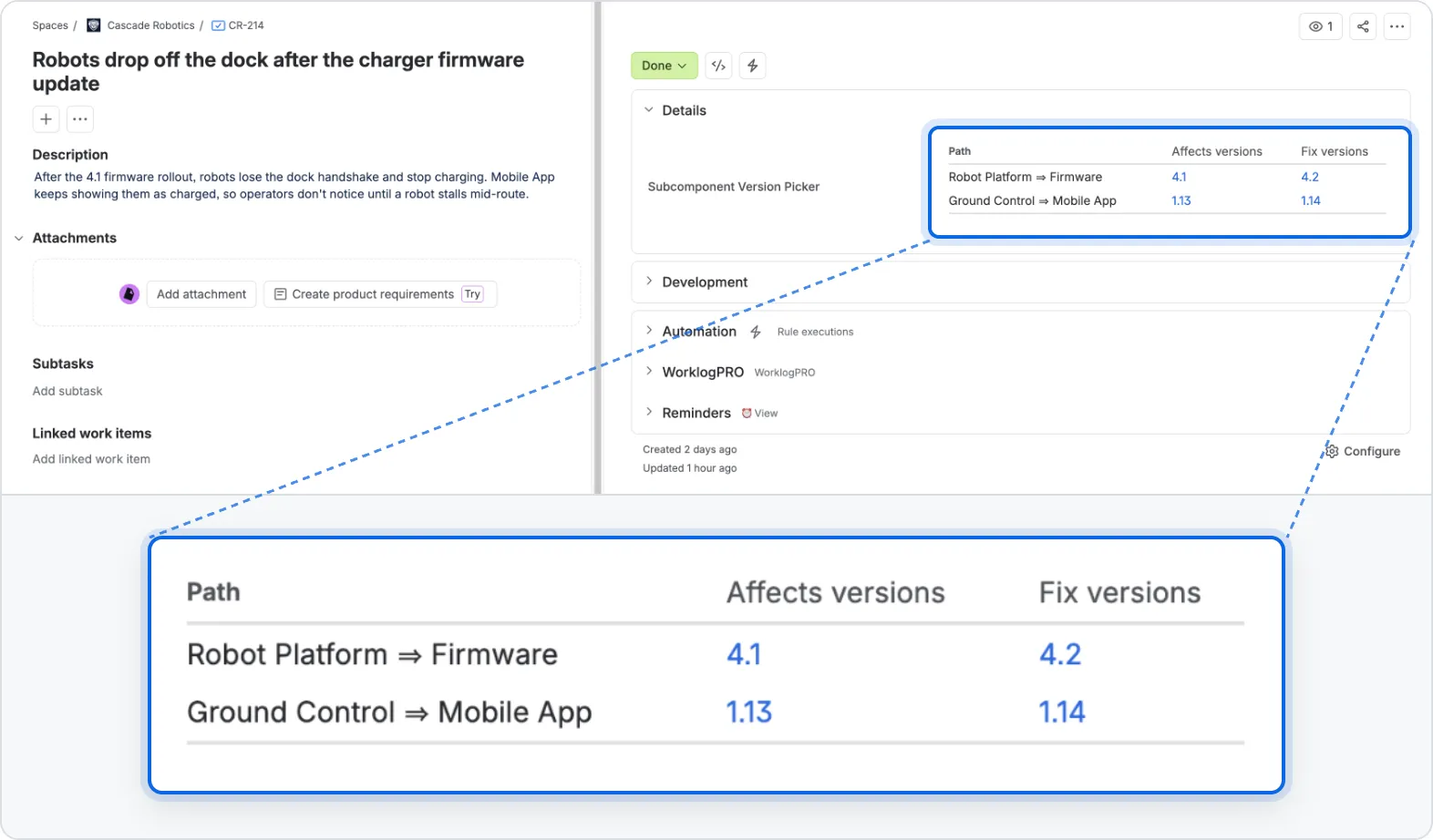
On the issue view, every version in the grid is a link. Click 4.2 in the Firmware row and Jira opens a search with two halves. The first half matches the pairing the picker stored: every issue whose Firmware row was given Fix Version 4.2. The second half is the plain component = Firmware AND fixVersion = 4.2, so issues that never went through the picker still show up, whether they were filed before the field existed or someone only ever touched Jira’s own fields.
That second half casts a wider net than the first. An issue where Firmware is fixed in 4.1 and another component happens to be fixed in 4.2 matches the plain query too, because Components and Fix versions still don’t know about each other. The search gets you every candidate; the grid on each issue it returns tells you which component actually landed in 4.2.
Where this fits
Per-component versions are the layer underneath most of the toolkit. Bundles group component versions into a release, the Auto Calculated Bundle field reads a component-and-version pair to work out which bundle an issue belongs to, and the Subcomponent Version Picker is what puts that pair on the issue in the first place.
This is the second post in our CMTC Deep Dives series, after Managing Multi-Component Releases in Jira with Bundles.
If your issues regularly cross component lines and a single flat version field keeps forcing an either-or choice, take a look at the Software Configuration Management Toolkit on the Atlassian Marketplace.