Color-Coding Rows in the Tabular Combobox Custom Field for Jira
How to tint or tag rows by color in the Tabular Combobox Custom Field for Jira, so patterns are visible across the config, edit, and view screens at a glance.
A table on a Jira field is only as useful as it is scannable, and once it grows past a screen’s worth of rows, scanning means reading. Which accounts are on the Enterprise plan? Which contracts are renewing soon enough to matter this month? With plain text rows, the only way to know is to read the Plan column, or the Renewal Date column, one row at a time.
In the first post in this series, we covered the basics of the Tabular Combobox Custom Field: an admin builds a table of columns and rows on a Jira field, and people pick whole rows on an issue instead of typing a value. Row color builds on that same table. Each row in the admin’s configuration screen has a small color swatch sitting next to it, and clicking that swatch opens a palette: four rows of intensity, from a barely-there subtlest tint up to a bold saturated one, ten hues across each row (blue, green, teal, purple, red, orange, yellow, magenta, lime, gray), plus a plain option to clear the color entirely.
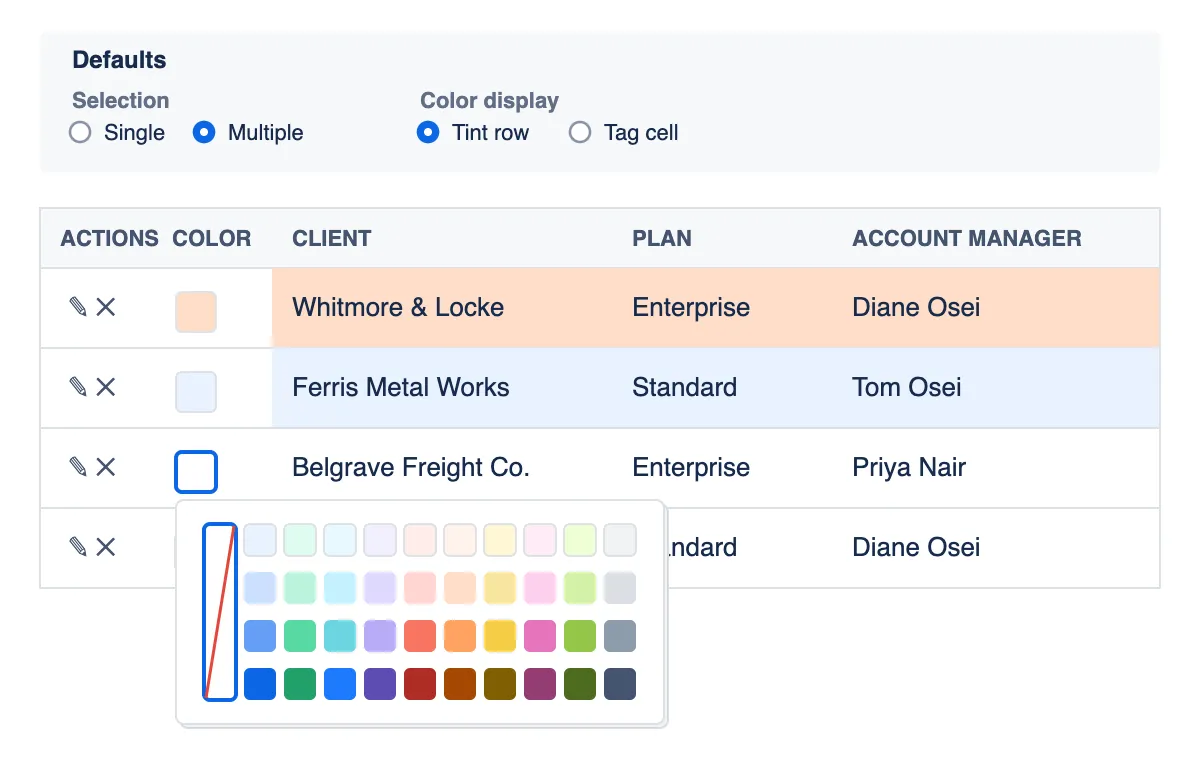
There’s also a choice for how that color shows up. In the Defaults panel above the table, an admin sets Color display to one of two modes.
Tint row fills the whole row with the color.
Tag cell leaves the row plain and shows the color in a narrow column at the start of the row, or as a small square above the block when only one row is picked.
The row is displayed with the selected color schema on all issue views.
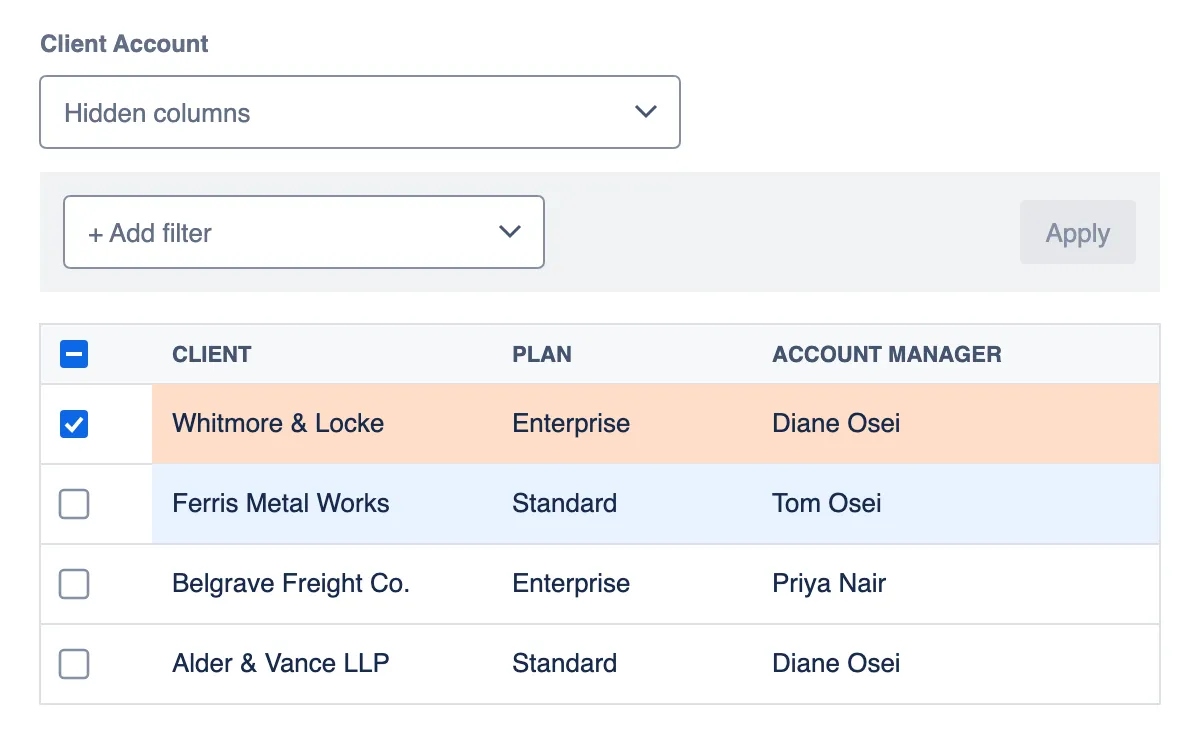
Here’s where that actually pays off. Picture the same Client Account field from the last post, the one holding Whitmore & Locke, Ferris Metal Works, and the rest. The team decides any account renewing within the next six months should stand out, so they open the config table, click the color swatch on Whitmore & Locke’s row (its March 3 renewal is close enough to matter), and pick orange. They do the same for a couple of other accounts nearing their own renewal dates. Scrolling through the table now, the accounts that need a renewal conversation soon are visually obvious. When the next Whitmore & Locke ticket comes in and an agent picks that row, the field’s labeled block on the issue carries the same orange tint, so the urgency shows up on the ticket itself.
Next in this series: hiding columns different people don’t need to see, and letting each person set that up for themselves.
Try the Tabular Combobox Custom Field on the Atlassian Marketplace and see how much faster a long table gets to read once it can carry its own color.