Asset Tracking Without Extra Tools: Linking Hardware to Jira
Your team manages hardware. Laptops get deployed, servers need maintenance, devices break and need repair. Right now, that information…
Your team manages hardware. Laptops get deployed, servers need maintenance, devices break and need repair. Right now, that information lives everywhere: a spreadsheet, an asset management tool you’re not fully using, scattered Jira comments, maybe a wiki page that’s three months out of date.
What if tracking physical hardware could be as simple as scanning a barcode?
The Problem with Hardware Management Today
Most teams juggle multiple systems:
- Inventory database or spreadsheet: Device serial numbers, purchase dates, warranty info
- Ticketing system (Jira): Where work actually happens: deployments, repairs, support tickets
- Wikis or shared docs: Troubleshooting guides, device specs, location maps
- Email threads: “Where’s that laptop?” “Who has the test device?”
The result? Information silos. When a developer reports a hardware issue, support has to manually search three places to find device history. When ops deploys a new machine, they’re updating a spreadsheet and a Jira issue manually. When maintenance is needed, nobody knows when the last service happened.
And that’s just the operational friction. There’s the sync problem: data gets out of step across systems, creating source-of-truth conflicts.
The Better Way: Barcodes That Link to Jira
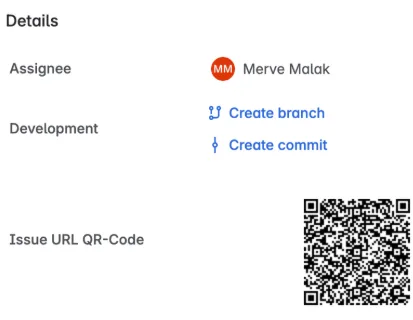
With our Barcode/QR Custom Field for Jira, you don’t need another tool. Every physical device becomes a direct link to its Jira issue.
Here’s the flow:
- Create an issue for your device (laptop, server, test kit, etc.) Configure issue fields and type according to asset type.
- Create a QR code custom fieldd, that automatically resolves to the issue URL.
- Print and affix the barcode to the physical hardware
- Team members scan it with any phone or scanner
- Instant access to device history, specs, current assignments, and related tickets
No extra software. No integrations to maintain. No sync delays.
Real Workflows This Enables
New Device Setup & Provisioning
You’re rolling out 50 new laptops to your team. Instead of sending spreadsheet attachments:
- Create a Jira epic for the deployment
- Each laptop gets its own issue with the barcode field
- Ops scans the barcode when provisioning
- They add OS version, software installs, setup date directly in the issue
- Developers scan to verify their machine is configured
- Security can see what’s on each device without asking
The barcode stays with the laptop for its entire lifecycle.
Maintenance & Service History
Your monitoring system alerts that a server needs maintenance. Instead of hunting for service records:
- Open the issue by scanning the server’s barcode
- See the full history: last restart, patches applied, recent incidents
- Document the maintenance work in the issue
- Next time someone investigates a similar problem, they’ve got context
Over time, you build a complete device history without duplicating effort.
Fault Tracking & Root Cause Analysis
A developer reports: “This test device keeps crashing.”
Traditional approach:
- Support asks: “Which device? What’s the serial number?”
- Developer has to hunt for it
- Support manually searches the asset database
- Support opens a Jira ticket and manually links it
- Days pass while context is gathered
With barcodes:
- Developer scans the device
- They’re in the issue immediately
- They see: “This device had the same failure two weeks ago. Here’s what fixed it.”
- One comment added. Resolved.
Inventory Audits & Verification
Quarterly audit time. Traditionally:
- Export spreadsheet of 200 devices
- Walk around with clipboard
- Manually verify each one, check if it still exists
- Update spreadsheet
- Reconcile with Jira (surprise: they don’t match)
With barcodes:
- Walk around with a phone
- Scan each device’s barcode
- See its current status in Jira (active, decommissioned, in repair, etc.)
- One source of truth. Takes 1/3 the time.
How to Set It Up
Configure the Field
- Navigate to Issues > Custom Fields in your Jira admin panel
- Find or create your barcode custom field
- In the field configuration, select Barcode Type: Choose QR Code (it handles longer asset codes and special characters better than Code 128)
- Save
Create Issues for Your Devices
For each device you want to track:
- Create a new Jira issue (or use an existing one)
- In the barcode field, enter a unique identifier: serial number, asset code, MAC address, or any ID scheme you use or create a URL barcode field, that automatically resolves to the issue URL
- The barcode generates automatically
- Add custom fields for device specs: model, purchase date, location, owner, warranty expiration
- Link related issues: support tickets, deployment tasks, etc.
Print & Deploy
- Print the QR code (it’s just a field on your issue view)
- Affix it to the device with a label or sticker
- Ship it to its destination
Now anyone can scan it anytime.
Best Practices
Use QR Code, not Code 128: QR codes handle longer text and special characters. Code 128 is limited to ASCII, so serial numbers with accents or extended characters will fail.
Meaningful identifiers: Use whatever ID already exists on the device (manufacturer’s serial number is best). Don’t invent new ones. You want scanning to be effortless.
Use Issue URL as barcode: With this special barcode field, you don’t need to enter anyting. Scanning the barcode takes you to the issue of the device automatically.
Link related issues: If the device has a deployment ticket, support assignment, or warranty contract, link them from the device issue. Your team sees the full context immediately.
Use custom fields for searchability: Add fields for device type, location, owner, status (active/repair/decommissioned). You can search and filter without opening each issue.
Keep history: Don’t delete old device issues. Archive them or mark as decommissioned. Future troubleshooting will thank you: “Did we ever have this problem before?”
When This Really Shines
This approach works best for:
- Hardware-heavy teams: Startups building hardware, IoT companies, labs with test equipment
- Cross-functional handoffs: When the same device moves between dev, ops, support, and QA
- Teams without dedicated asset management tools: Especially if you already run Jira. Please note thtat Jira also has asset database if you have premium or enterprise version. Free and standard version doesn’t provide asset database.
- Distributed teams: No central inventory location, so everyone has access via their phone
If your team already has a dedicated asset management system you’re deeply invested in, this might be redundant. But for most teams using Jira? This eliminates a tool and a sync problem in one move.