Export Jira Barcodes to PDF and Excel From a JQL Search
Jira's issue navigator shows barcode fields as plain text. Barcode/QR Custom Field for Jira takes the issues your JQL search returns, draws their codes and exports them to PDF or Excel with the columns you pick.
Over the last three posts we’ve looked at the barcode fields in Barcode/QR Custom Field for Jira. The Issue URL Barcode opens the issue when you scan it. The Editable Barcode holds a number the thing already has, like a serial or an asset tag, and the Jira Expression Barcode builds its label from other fields on the issue. Each of them puts a code on a single issue, and you print the label from there.
When you’re dealing with a shelf of returned devices or a batch of parts going out, you’re working from a list of issues, and in Jira a list starts with the issue navigator. You write the JQL and get exactly the issues you asked for. Barcode fields show up there as plain text, though, and the export has the text too.
Say five repaired laptops are waiting at the IT desk, and the team lead wants a sheet with their device barcodes on it. You know the JQL, and the navigator returns the five issues in a second. To get the codes, you’d have to open each issue, download its label and put the five images on one page yourself. That’s a few minutes for five laptops, and it takes longer every time the list grows.
To give you another way to get there, we added Barcode/QR Custom Field for Jira to the issue navigator. The app takes the issues your search returns, draws their barcodes or QR codes in a table and lets you export that table to PDF or Excel. It works with all three field types, so you can use it with the barcode fields you already have.
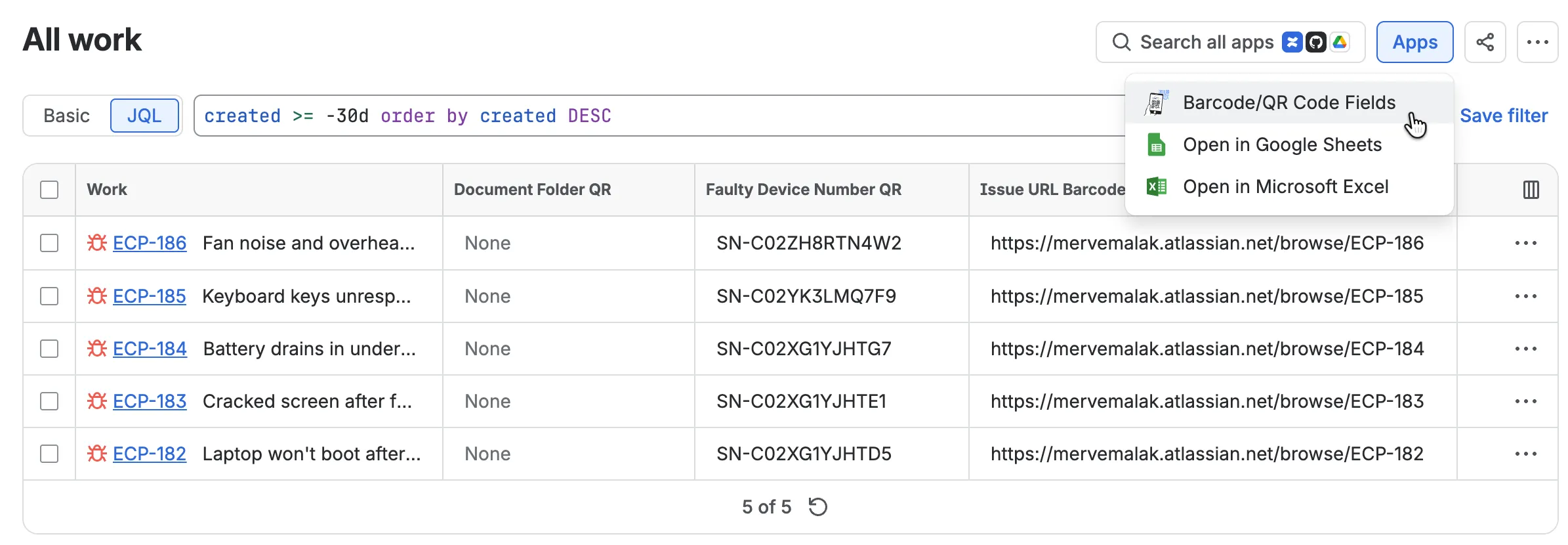
Building the table
Write your JQL in the issue navigator the way you always do. The query decides which issues end up on the page, so everything you already know about filtering applies, from status and project to labels, dates and assignees. Once the results are there, you open the app from the same page and pick the Barcode/QR field whose codes you want to see.
Next to each code you can add the fields you want as extra columns: the summary, the assignee, the due date, a custom field, even a second barcode field. The result reads like any other Jira table, with the codes in it.
The table exports to PDF or Excel. A PDF is the version you print and carry to the shelf, the desk or the workshop. An Excel file is for everything that happens after Jira: sorting by a column, sending it to a colleague, pasting it into a stock sheet. Both files contain the barcode images and the columns you picked.
Example: repaired laptops at the IT desk
Each of the five laptops at the IT desk has an issue, and each issue holds the device number in the Faulty Device Number Barcode field from the earlier post. The team’s query is:
project = ECP AND status = "Ready for Pickup"They run it in the issue navigator, open the app and pick the Faulty Device Number Barcode field, so every returned issue gets its code. Then they add an Issue URL Barcode next to it, plus three more columns: Summary, Assignee and Due date. Whoever is at the desk can see at once which laptop is which, what was wrong with it and who worked on it, without opening a single issue.
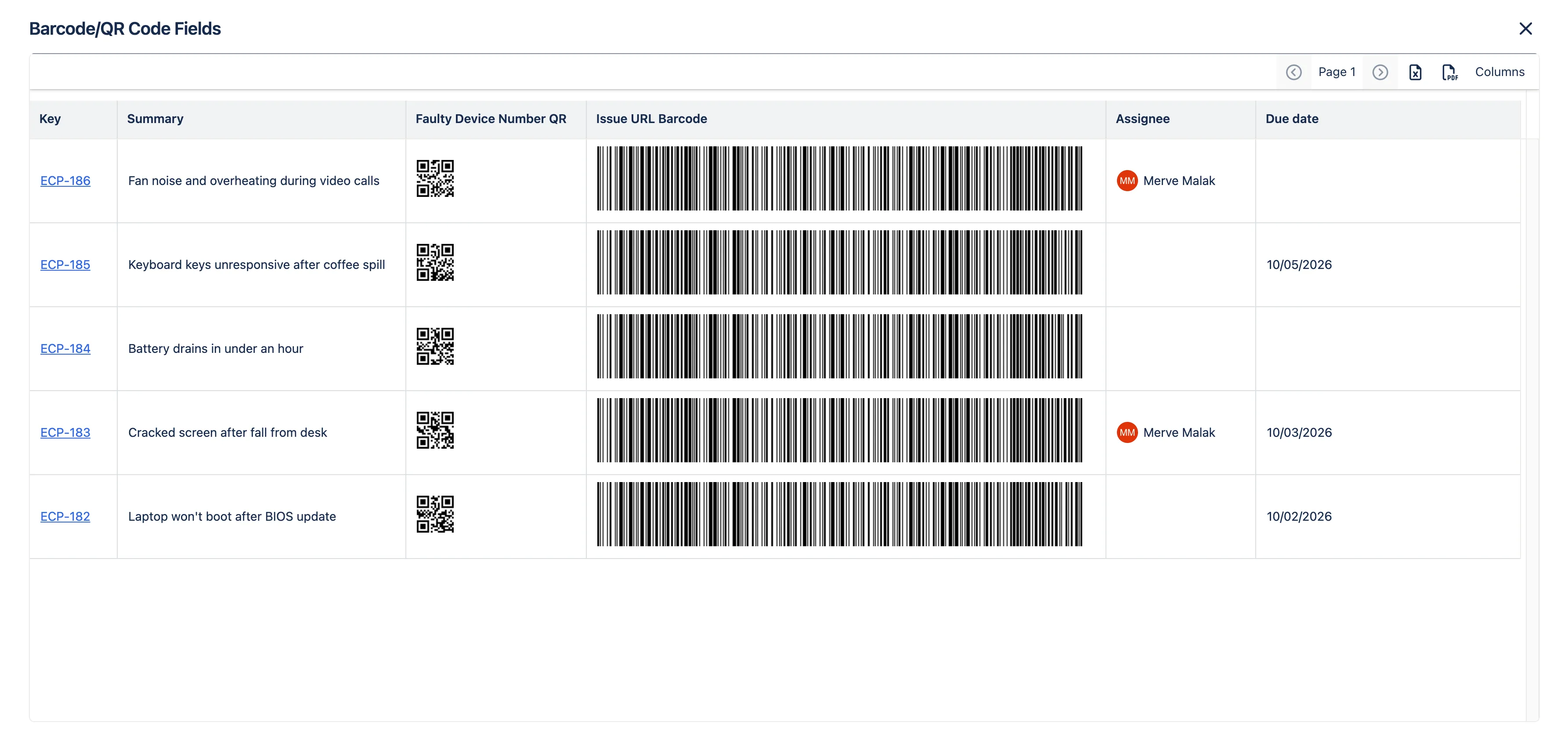
They export to PDF and print it. At the desk, whoever hands a laptop back finds its row and scans the device code on the sheet into the handover form. Nobody types a 12-character serial number by hand, so a mistyped digit can’t send a laptop to the wrong person. If the person collecting it asks what was repaired, the second code answers that: one scan with a phone opens the issue with its full history. The same query exported to Excel goes to the team lead, who can sort it by assignee or due date and see at a glance which laptops are late and who is holding them.
For next week’s batch, the team runs the same JQL and exports again.
Which barcode for which scenario
- Issue URL Barcode: when the scan should open the issue itself. This is the one for equipment with a maintenance history, shelf edges and anything a technician meets in person. Print once, stays correct for years.
- Editable Barcode: when the thing already has a number you can’t change, like a serial, an asset tag or a SKU. It’s the best fit when handheld scanners or another system already read that number, and it’s the field to pick for the handover sheet above.
- Jira Expression Barcode: when the label should be built from other fields, such as a link to a file folder, a due date or a status summary. Reprint it when the data changes, because paper keeps whatever was true at print time.
Barcode/QR Custom Field is on the Atlassian Marketplace, if you want to turn your own JQL results into a printable sheet.