Showing Boards and Sprints on a Jira Issue
How the Board Custom Field for Jira shows every board an issue matches together with its sprint status on the issue itself.
A single Jira project can have four or five boards behind it: a squad’s sprint board, a release board scoped to a fix version, a leadership Kanban board that only pulls in high-priority work, maybe a support triage board on top of all that. Each board has its own saved filter deciding which issues show up on it, and none of that is visible from the issue itself. So when someone asks “is this even on a board right now, and which sprint is it in” you need to go and check several different board.
Board Custom Field puts that answer directly on the issue. It’s a read-only field that shows which boards an issue is and shows the current sprint status on each board. Since it is a read-only field, you don’t need to enter any data and it will work all of your issues even created before this custom field is available.
How it works
For every board configured in the issue’s project, it pulls that board’s saved filter and asks Jira’s own JQL matching API whether this specific issue satisfies it. Only boards that match show up as rows. That distinction matters because two boards in the same project can have different filters, one might scope to a component, another to a label, another to a fix version, so “which boards does this project have” and “which boards is this issue on” are often different lists.
Each row in the field shows the board’s name, linked to that board, and the sprint the issue currently sits in on that board. If there’s an active or future sprint, it’s shown as a link to the backlog; if there isn’t one, the field shows “None.” If the issue has been through closed sprints on that board before, a small +N button appears next to the sprint, opening a popup that lists each completed sprint by name with its end date, useful for reconstructing an issue’s sprint history without digging through a board’s own reports.
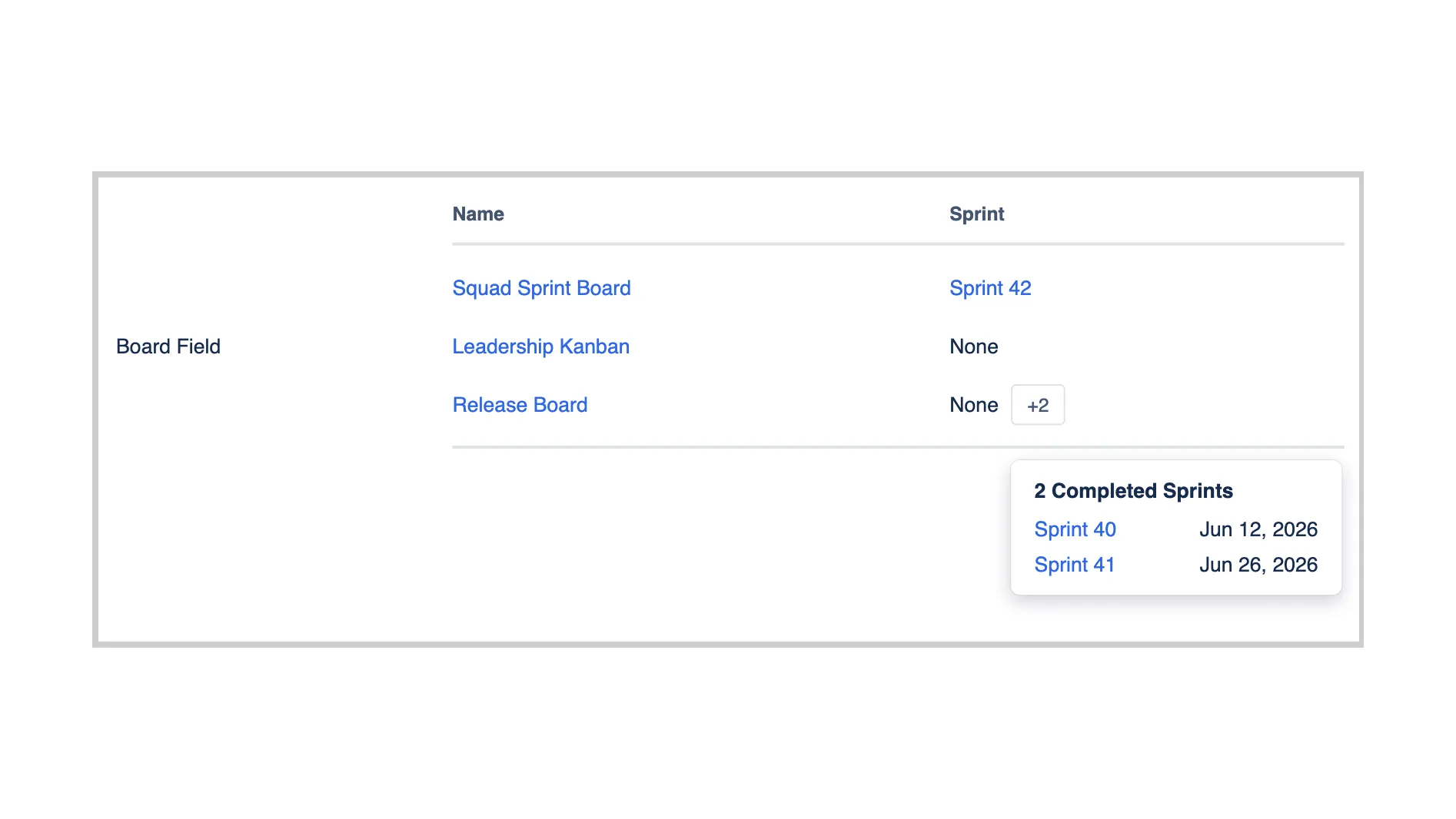
An example: one issue on three boards
Priya’s team ships a payments feature under the ticket PROJ-1204, “Add retry logic for failed webhook deliveries.” The squad tracks it on Squad Sprint Board, scoped to their team’s component, where it’s currently sitting in Sprint 42. Because it’s tagged with a customer-escalation label, it also matches the filter behind Leadership Kanban, a board the engineering director watches across every team for customer escalations. And since it’s assigned to the upcoming fix version, it shows up on Release Board too, where the release team ran their stabilization sprints.
Before Board Custom Field, nobody on the squad knew the issue showed up on the director’s board at all, the label was added weeks earlier for a different reason and nobody connected it to that filter. Open PROJ-1204 today and the field lists all three boards in one table: Squad Sprint Board with a link to Sprint 42, Leadership Kanban showing “None” for sprint, since that board doesn’t run sprints, it’s pure Kanban, and Release Board also showing “None,” because the issue isn’t in any of that board’s current or upcoming sprints.
Priya can now see that leadership is watching this ticket even though the squad never manually added it anywhere. When the fix ships and the label gets removed, the field drops the Leadership Kanban row on the next load, since the issue no longer matches the board’s filter.
Before the squad picked it up, PROJ-1204 had already passed through two of the release team’s sprints without being finished. When a stakeholder asks “wasn’t this ticket in scope back in Sprint 40,” Priya doesn’t need to open Release Board and scroll its old sprint reports. Opening PROJ-1204 and clicking +2 next to Release Board shows Sprint 40 and Sprint 41 listed with their end dates, June 12 and June 26.
How is this different from Jira’s built-in Sprint field?
Jira’s Sprint field answers one question: which sprint is this issue in? Board Custom Field takes a step back and asks: which boards is this issue on, and where does it stand on each one?
The difference shows up in three places:
- Boards: The Sprint field doesn’t tell you which board a sprint belongs to, or which other boards’ filters the issue matches. Board Custom Field lists each board as its own row, linked to that board.
- Kanban boards: Kanban boards never show up in the Sprint field, so there’s no way to learn from it that PROJ-1204 sits on Leadership Kanban. Board Custom Field lists that board anyway and shows “None” for sprint.
- Sprint history: The Sprint field shows completed sprints as one combined list. Board Custom Field puts each completed sprint on the row of the board it ran on, along with its end date.
You still use the Sprint field to move an issue in or out of a sprint. Board Custom Field is read-only. It reads its sprint data from Jira itself and shows it one board per row.
In our next post in this series, we’ll cover the field’s other half, ranking an issue to the top or bottom of a board’s backlog without opening that board.
Board Custom Field is on the Atlassian Marketplace, if you want to try it on your own Jira issues.