Using TypeScript for AWS Lambda
AWS Lambda only supports NodeJS runtime and it can only run JavaScript. As always you need to transpile TypeScript to JavaScript using tsc…
AWS Lambda only supports NodeJS runtime and it can only run JavaScript. As always you need to transpile TypeScript to JavaScript using tsc, TypeScript compiler. To transpile a TypeScript file, you need a tsconfig.json file which tells tsc how it should process TypeScript files and what should produced JavaScript files look like. Configuration specified in tsconfig.json should be compatible with Node version you are using.
{
  "extends": "./node_modules/@tsconfig/node14/tsconfig.json",
  "compilerOptions": {
    "sourceMap": true,
    "moduleResolution": "node",
    "outDir": "./build",
    "rootDir": "./src"
  },
  "include": ["src/**/*.ts", "src/**/*.tsx", "src/**/*.js"]
}
Above configuration file instructs tsc to produce Node14 compatible JavaScript files in build folder from all the files specified in include configuration option under src folder. sourceMap is required if you want to debug your Typescript file.
We need to install npm dependencies for typescript and type definitions.
npm install -D typescript @types/node @types/aws-sdk @types/aws-lambda @tsconfig/node14When we run tsc it will produce .js files in build folder. This is the folder we should specify in our lambda functions.
EventFunction:
  Type: AWS::Serverless::Function
  Properties:
    CodeUri: build #points to folder of JavaScript files
    Handler: event.add #add function inside build/event.js file
    Policies:
      DynamoDBCrudPolicy:
        TableName: !Ref EventTable
Add type definitions for lambda function in src/event.ts file.
#These definitions come from @types/aws-lambda
import {
  APIGatewayEventRequestContext,
  APIGatewayProxyEvent,
  APIGatewayProxyResult} from "aws-lambda";

export async function add(event: APIGatewayProxyEvent, context: APIGatewayEventRequestContext)
    : Promise<APIGatewayProxyResult> {
  return {
    statusCode: 200,
    body: "Hello World"
  }
}
This lambda function is empty now, we will read event body and process it. We want our lambda function to receive a json object in the event body with format {cloudId: "######"}.
To test our lambda function lets create a test event and we can use this event to invoke our Lambda function as if it is invoked from API Gateway. Using “sam local generate-event” command, generate a new test event and modify body part of it to correspond to expected format. Don’t forget to escape " with \".
sam local generate-event apigateway aws-proxy > events/event.jsonThis saves test event to events/event.json file. Update the body part of test event.
"body": "{\"cloudId\": \"123456\"}",Our test event is ready now compile Typescript files using npx tsc and after that you can now invoke Lambda function locally using following command.
sam local invoke EventFunction --event events/event.jsonLet’s try everything locally and add DynamoDB support for slightly more complex use case.
For this we need to start local version of DynamoDB. Following commands create a Docker network with name “sam-local”. Them we start a local DynamoDB instance with hostname dynamo, port 8000 on the created network.
docker network create sam-local
docker run --rm --network sam-local --name dynamodb -p 8000:8000 amazon/dynamodb-local
Lets create a DynamoDB table with name “EventTable” and single attribute “cloudId”. Normally if we deploy our template.yml file, table definition in it will be automatically created but since we are running everything locally we have to manually create the table
aws dynamodb create-table --table-name EventTable \
--attribute-definitions \
AttributeName=cloudId,AttributeType=S \
--key-schema AttributeName=cloudId,KeyType=HASH \
--provisioned-throughput ReadCapacityUnits=1,WriteCapacityUnits=1 \
--endpoint-url http://localhost:8000
Use following command to check table really exist:
aws dynamodb list-tables --endpoint-url http://localhost:8000Lets update our Lambda function to write and read from DynamoDB table we have just created.
import {
  APIGatewayProxyEvent,
  APIGatewayProxyResult
} from "aws-lambda";
import AWS from "aws-sdk";

//we need use this for testing DynamoDB locally
if (process.env.LOCAL_DYNAMODB_URL) {
  console.log("Connecting to DynamoDB on", process.env.LOCAL_DYNAMODB_URL);
  AWS.config.update({
    // @ts-ignore
    endpoint: process.env.LOCAL_DYNAMODB_URL
  });
}
const dynamo = new AWS.DynamoDB.DocumentClient();
//Define an interface for type safety
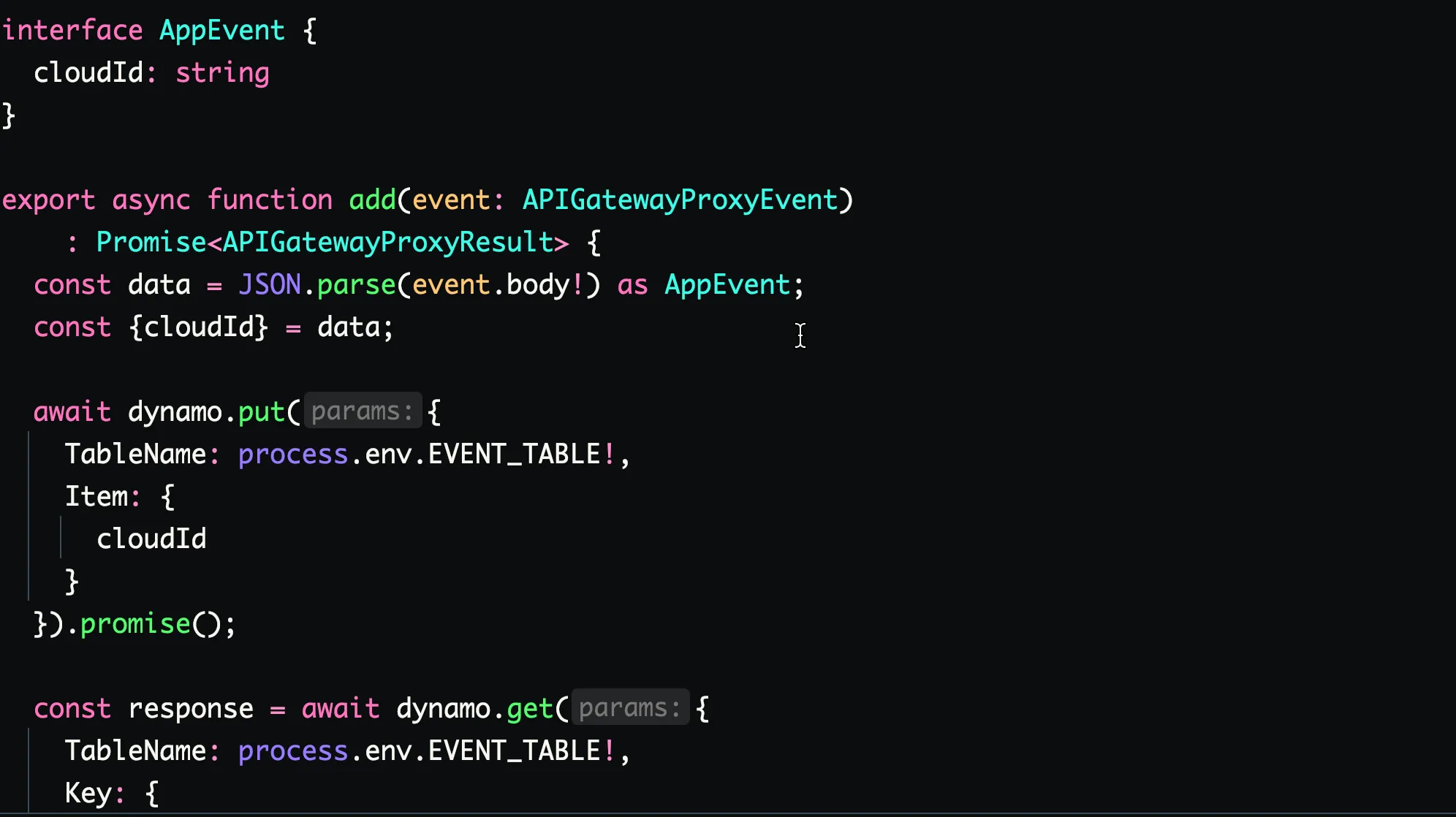
interface AppEvent {
cloudId: string
}
export async function add(event: APIGatewayProxyEvent)
: Promise<APIGatewayProxyResult> {
const data = JSON.parse(event.body!) as AppEvent;
const {cloudId} = data;
await dynamo.put({
TableName: process.env.EVENT_TABLE!,
Item: {
cloudId
}
}).promise();
const response = await dynamo.get({
TableName: process.env.EVENT_TABLE!,
Key: {
cloudId
}
}).promise(); console.log("result", response.Item);
return {
statusCode: 200,
body: "Ok"
}
}We have to set a few environment variables so that our lambda function knows the table name and location of DynamoDB running locally. Normally when deploying template.yml file you don’t need to set them. These are only necessary for locally running everything.
export LOCAL_DYNAMODB_URL=http://dynamodb:8000
export EVENT_TABLE=EventTable
Don’t use http://localhost:8000 for LOCAL_DYNAMODB_URL environment variable, it will not work. This environment variable is evaluated in a Docker container and DynamoDB is running in another Docker container. All the “sam local invoke” commands need to use “http://dynamodb:8000” for DynamoDB endpoint. But when connecting to DynamoDB from command-line you can use http://localhost:8000 as endpoint URL, because we are binding DynamoDB container’s port 8000 to localhost 8000. In other words, “sam local invoke” and DynamoDB are running in different containers and they can’t access each other using localhost.
Finally we can invoke our lambda function locally.
sam local invoke EventFunction --docker-network sam-local --event events/event.jsonYou can use AWS CLI to check our EventTable contains the record we have posted in our test event:
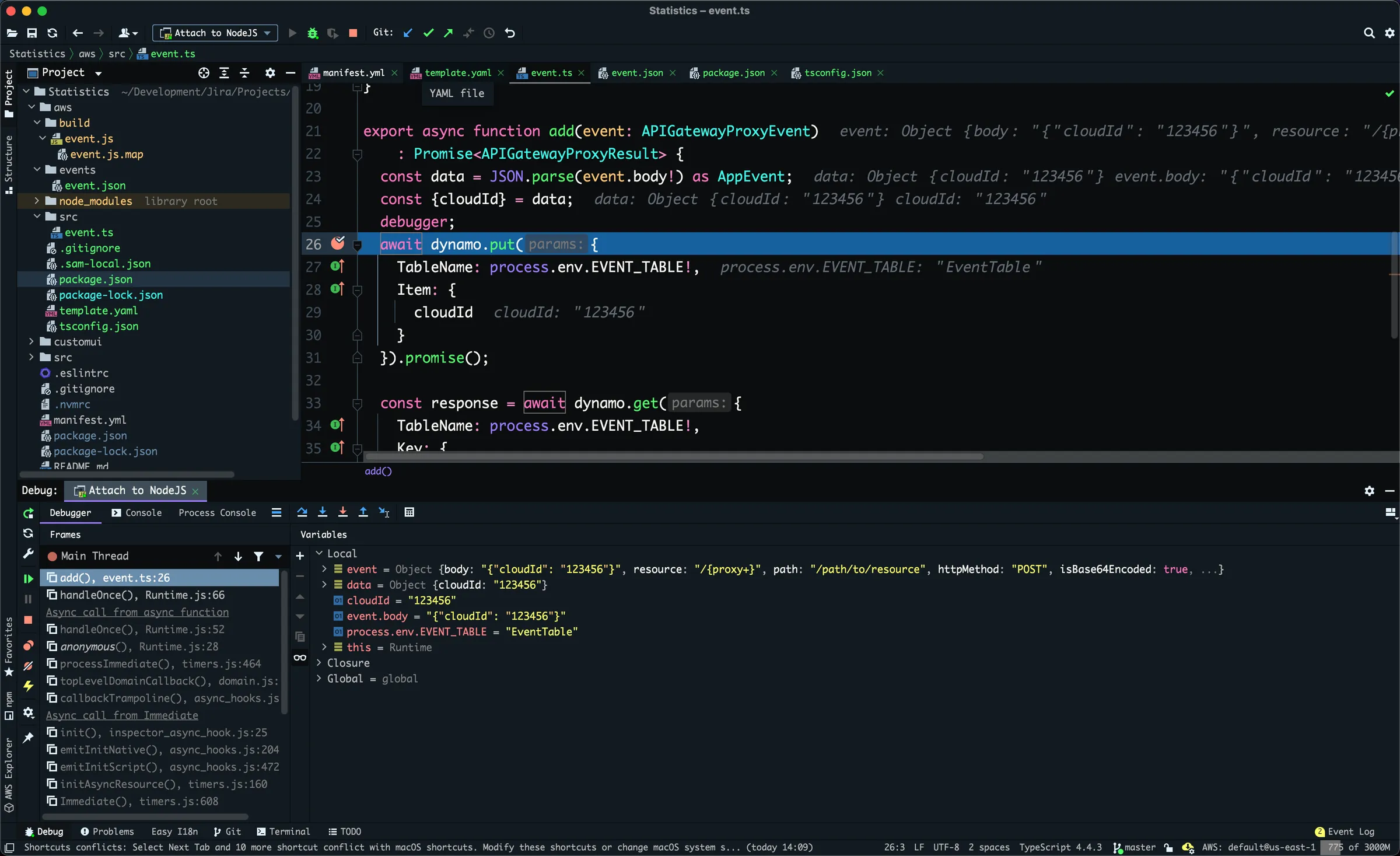
aws dynamodb scan --table-name EventTable --endpoint-url http://localhost:8000You can also put breakpoints in your Typescript code and debug code your locally. To do this, you need to pass -”d PORT” parameter to “sam local invoke” command or specifying the debug port.
sam local invoke EventFunction -d 5858 --docker-network sam-local --event events/event.jsonAlso you have to but debugger; statement to the line where you want it to stop execution and wait for debugger to attach. After this, you can create a new “Debug Configuration” in Webstorm/VSSCode and choose “Attach to running Nodejs” option and specify the port 5858.