Python for Programmers: Part-1
Python is a very popular programming language especially in data analytics and AI. Although you can use other programming languages like…
Python is a very popular programming language especially in data analytics and AI. Although you can use other programming languages like JavaScript, Python gets the lion share.
As an experienced programmer with more than 20 years of experience, I will share my Python journey with you. This series is not for everyone, you should already have programming experience. I will use MacOS for OS dependent parts, such as installation. Since I’m also just larning Python, I may misguide you.
Installing Python
When installing any development environment, you should always get ready to have multiple versions of it in your system. For Python, we can use pyenv to manage different python versions. It is similar to sdkman for Java, or nvm for NodeJS.
Install pyenv:
brew update
brew install pyenv
pyenv init
Install Python using pyenv:
pyenv install 3.12.2
pyenv local 3.12.2
python --version
Of course, should use a stable version. As far as I can see, there is no LTS concept for Python releases. If you are following a tutorial/course, you should use the version specified by the instructor due to potential compatibility issues.
Python Virtual Environments
pyenv takes cares of managing different versions of the python on your system. But we also need to take care of modules installed by you. Using virtual environment, you can have different versions of 3rd party packages installed using the same python interpreter. It is best practice to install every Python application into its own virtual environment.
The following command creates a virtual environment in venvfolder. Name of the folder can be anything. But venv is the default name. It is a little bit special.
py -m venv venvThis virtual environment acts like a separate Python installation. Let’s activate this venv virtual environment.
cd venv\bin
source activate
Let’s install [requests](https://docs.python-requests.org/en/latest/user/quickstart/) package.
py -m pip install requestsYou can invoke this command at any folder, and it will correctly install the dependency inside venv/lib/{python-version}/site-packages folder.
Lets test our newly installed package.
py
import requests
response = requests.get("https://thestarware.com")
response.status_code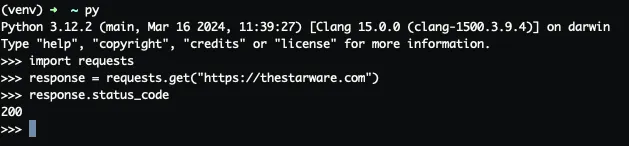
py command starts the Python interpreter shell. You can write small Python scripts using this shell. To exit the shell, you can use CTRL+D.