Migrate from TEMPO Timesheet’s Permissions to WorklogPRO Timesheet Permissions in Jira
Both Tempo and WorklogPRO have their own custom global and project permissions. We are getting a lot of requests from migrating from Tempo…
Both Tempo and WorklogPRO have their own custom global and project permissions. We are getting a lot of requests from migrating from Tempo to WorklogPRO and customers want to automate it.
First of all, there is no one to one mapping between each add-on’s permissions. Some permissions that exist in Tempo, don’t exist in WorklogPRO and vice versa. For this migration automation, we will only focus on the permissions that exist in WorklogPRO.
Also, when you install WorklogPRO, it automatically sets a default value for every permission. In this article we will first show how you can copy a value from Tempo to corresponding permission in WorklogPRO. When copying the permission from Tempo, it will not override the existing permission, it will just add the new permission. Later, I will show how you can add a value to all permissions schemes or remove a value from all permission schemes.
First of all, you should have both timesheet add-ons installed at the same time. This will cause temporary duplicate functionality, and these will go away once we disable one of the add-ons. Second, you should have Atlas CLI tool installed on your local computer and you should have corresponding plugin in your Jira instance. You can use a trial license. A trial license is fully functional and should be enough for your one-time automation task.
In Jira, permissions fall in two categories, “Global Permissions” and “Project Permissions”. There is only one “Global Permissions” set in Jira. But there can be multiple “Project Permissions” each of which may be only applicable to some projects.
Project Permissions
Here is the mapping between Tempo project permissions and WorklogPRO project permissions. We will add all the entries from Tempo permission to corresponding WorklogPRO permission.
+--------------------------------------------------+-----------------------------------------------------------------------+
|                 TEMPO Permission                 |                         WorklogPRO Permission                         |
+--------------------------------------------------+-----------------------------------------------------------------------+
| Log Work for Others(PROJECT_LOG_WORK_FOR_OTHERS) | Log Work for Others(WP_LOG_WORK_FOR_OTHERS)                           |
| View All Worklogs(PROJECT_VIEW_ALL_WORKLOGS)     | View All Worklogs(WP_VIEW_ALL_WORKLOGS)                               |
| None                                             | View Own Worklogs(WP_VIEW_OWN_WORKLOGS)                               |
| None                                             | View Worklogs of Private Issues(WP_VIEW_WORKLOGS_OF_PRIVATE_ISSUES)   |
| None                                             | Approve Timesheets(WP_APPROVE_TIMESHEETS)                             |
| None                                             | Ability to work on un-editable issues(WP_WORK_ON_NON_EDITABLE_ISSUES) |
+--------------------------------------------------+-----------------------------------------------------------------------+
We will migrate two permissions, “Log work for Others” and “View All Worklogs”.
Migrating “Log work for Others”
We will read each permission grant entry from PROJECT_LOG_WORK_FOR_OTHERS and create the same entries in WP_LOG_WORK_FOR_OTHERS.
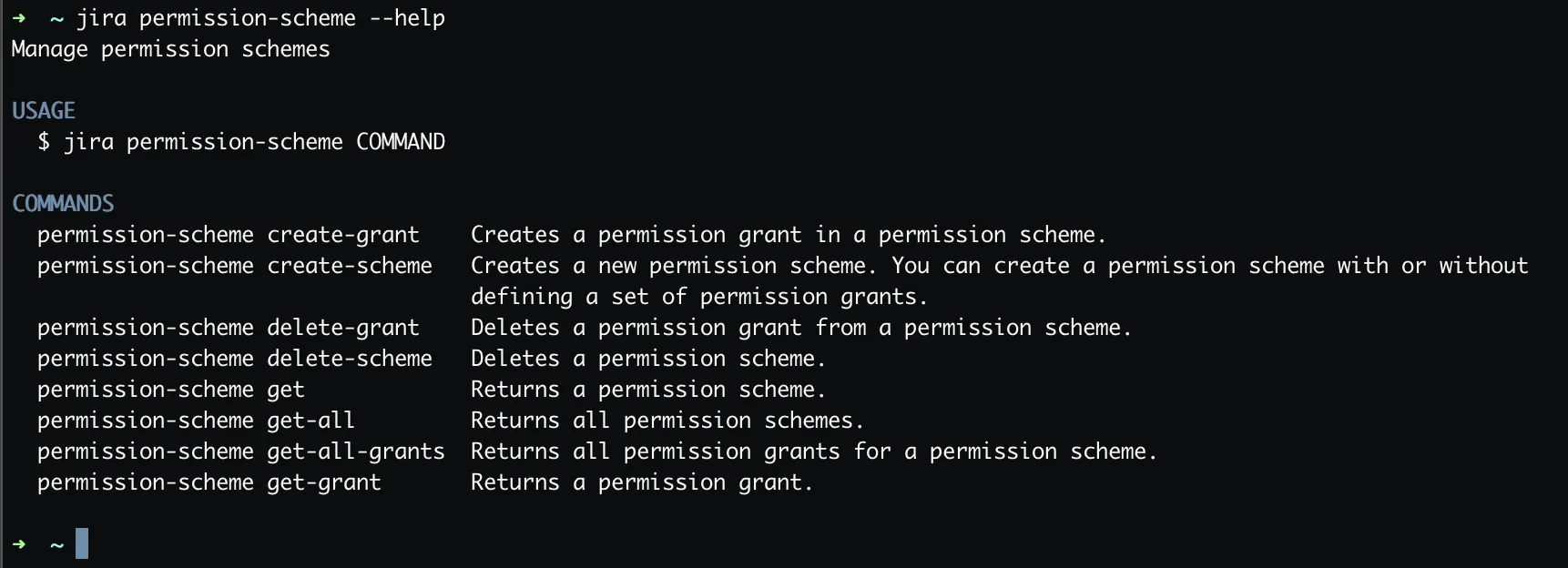
for id in $(jira permission-scheme get-all | awk '{print $1}' | tail -n +3); do jira permission-scheme get-all-grants -i $id | grep PROJECT_LOG_WORK_FOR_OTHERS | awk '{print $1}' | xargs -I {} jira permission-scheme get-grant -i $id -p {} --csv | awk 'NR > 1' | awk -F',' '{printf "\"-t\" \"%s\" \"-p\" \"%s\"\n", $3, $4}' | xargs -n4 jira permission-scheme create-grant -i $id --permission=WP_LOG_WORK_FOR_OTHERS; done- For loop iterates over all permission schemes in Jira and gets the scheme id.
- Using the scheme id, we get all permissions and filter for “PROJECT_LOG_WORK_FOR_OTHERS” permissions.
- For each “PROJECT_LOG_WORK_FOR_OTHERS” permission, it gets the permission grant entries inside it.
- Creates a new permission grant in “WP_LOG_WORK_FOR_OTHERS” using the details of “PROJECT_LOG_WORK_FOR_OTHERS” entry details.
The command will output each created permission grant in the console as follows:
 Id    Holder Type
 ───── ───────────
 11200 projectRole
 Id    Holder Type
 ───── ───────────
 11201 projectRole
 Id    Holder Type
 ───── ───────────
 11202 projectRole
It can also give some errors as follows:
Error: Bad Request:Permission WP_LOG_WORK_FOR_OTHERS for USER (parameter: admin) already exists in scheme 10000This error is normal, it simply says that corresponding permission grant entry already exist in the permission.
Migrating “View All Worklogs”
It is the same with “Log work for Others”, we will just replace PROJECT_LOG_WORK_FOR_OTHERS with PROJECT_VIEW_ALL_WORKLOGS and WP_LOG_WORK_FOR_OTHERS with WP_VIEW_ALL_WORKLOGS.
for id in $(jira permission-scheme get-all | awk '{print $1}' | tail -n +3); do jira permission-scheme get-all-grants -i $id | grep PROJECT_VIEW_ALL_WORKLOGS | awk '{print $1}' | xargs -I {} jira permission-scheme get-grant -i $id -p {} --csv | awk 'NR > 1' | awk -F',' '{printf "\"-t\" \"%s\" \"-p\" \"%s\"\n", $3, $4}' | xargs -n4 jira permission-scheme create-grant -i $id --permission=WP_VIEW_ALL_WORKLOGS; doneYou can also use these techniques for other purposes. For example, assume that you have created a new user group, and you want to add this group to give BROWSE_PROJECT permission to this group in all permission schemes. You can easily do this using the techniques here.
Adding New Permission Grants to All of the Existing Schemes:
You can add several different types of permission grants and parameters for each of them is different.
Adding a user:
for id in $(jira permission-scheme get-all | awk '{print $1}' | tail -n +3); do jira permission-scheme create-grant -i $id --permission=WP_VIEW_ALL_WORKLOGS -t "user" -p "admin"; doneAdding a user group:
for id in $(jira permission-scheme get-all | awk '{print $1}' | tail -n +3); do jira permission-scheme create-grant -i $id --permission=WP_VIEW_ALL_WORKLOGS -t "group" -p "jira-administrators"; doneAny logged-in user:
for id in $(jira permission-scheme get-all | awk '{print $1}' | tail -n +3); do jira permission-scheme create-grant -i $id --permission=WP_VIEW_ALL_WORKLOGS -t "applicationRole"; doneAs you can see, the for-loop part is the same, only parameters to `jira permission-scheme create-grant` command are changing. Instead of repeating the same parts, I will just give you the parameters for different scenarios:
- permissions: You can use any permission in Jira or WorklogPRO. List of WorklogPRO specific permissions is given in the first table at the beginning of this article.
- -t: This is the type parameter. Accepted entries are given here. For above examples we have used “user”, “group”, “applicationRole”, “projectRole”.
- -p: this is the value parameter. Its value depends on the -t parameter. For example, for “-t user” it should be user key.
When granting permission to a project role, you will need the ID of the role. You can use “jira project-role get-all” command to get name and ID of all the roles in the Jira instance.
+------------------------+-------+
|          Name          |  Id   |
+------------------------+-------+
| Administrators         | 10002 |
| Developers             | 10200 |
| Service Desk Customers | 10100 |
| Service Desk Team      | 10101 |
| Tempo Project Managers | 10400 |
| Testers                | 10300 |
+------------------------+-------+
You can also rename a “project role”. For example, to rename “Tempo Project Managers” role to “WP Managers” you can use the following command.
jira project-role update -i 10400 -n "WP Managers" -d "WP Managers role description"Removing a Permission Grant from All of the Existing Schemes:
This is very similar to adding a new permission grant to all permission schemes. We are looping all the permission schemes in the Jira, getting all the permission grants in each scheme and filtering for a specific permission (for this example, WP_VIEW_ALL_WORKLOGS) and piping the result to “jira permission-scheme delete-grant” command.
for id in $(jira permission-scheme get-all | awk '{print $1}' | tail -n +3); do jira permission-scheme get-all-grants -i $id | grep WP_VIEW_ALL_WORKLOGS | awk '{print $1}' | xargs -I {} jira permission-scheme delete-grant -i $id -p {} ; doneGlobal Permissions
Unfortunately, Atlas CLI doesn’t have commands to modify “Global Permissions”. But this is not critical actually. Because there is only one global permission. For this reason, you can do it manually on the Jira UI. There are only 3 permissions you need to set and mapping of Tempo permissions to corresponding WorklogPRO permissions are as follows:
+--------------------------------------------------+-----------------------------------------------------------+
|                 TEMPO Permission                 |                   WorklogPRO Permission                   |
+--------------------------------------------------+-----------------------------------------------------------+
| Tempo Administrators(GLOBAL_TEMPO_ADMINISTRATOR) | WorklogPRO Administrators(WP_WORKLOGPRO_ADMIN)            |
| Tempo Timesheet Access(TEMPO_TIMESHEETS_ACCESS)  | Use WorklogPRO(WP_USE_WORKLOGPRO)                         |
| None                                             | Require Timesheet Approval(WP_REQUIRE_TIMESHEET_APPROVAL) |
+--------------------------------------------------+-----------------------------------------------------------+