Installing MacOS to External Drive
In our company, we primarily use Macs for web development and rely on AWS for more intensive tasks. Therefore, we don’t need the most…
In our company, we primarily use Macs for web development and rely on AWS for more intensive tasks. Therefore, we don’t need the most powerful machines for development.
I usually work from the office and carry my 16” M1 MacBook Pro with me every day. Given the significant single-thread performance difference between the M1 and M4 Apple silicon, and considering that I mostly work from the office, I decided to go with a Mac Mini this time. I’ll leave the Mac Mini in the office and use my M1 laptop at home if needed.
Although the base Mac Mini is an excellent choice for its performance, RAM and SSD upgrades are quite expensive, costing $200 or $400 each. While all Macs now start with 16GB of RAM, which is sufficient for our daily web development needs, I opted to future-proof my setup by upgrading to 24GB of RAM. This was the only upgrade I made. Despite the base model’s 256GB SSD being insufficient, I didn’t upgrade it because I’ll be using a Thunderbolt 4 enclosure with a fast 2TB SSD.
The speed of the 256GB internal SSD of the Mac Mini is slightly below 3000MB/s, while my external SSD’s speed is slightly above 3000MB/s, so SSD speed won’t be an issue for my setup. Of course, a 1TB internal SSD would be about twice as fast as a Thunderbolt 4 drive, but this only matters for very large file transfers. Since I’m not a video editor, this isn’t a concern for my web development machine.
Currently, many YouTubers are making videos about moving your home folder to an external drive. I tried that approach, and while it works, it has a significant downside: you can’t protect your home folder with FileVault anymore. “FileVault” is only activated for your boot volume. Without FileVault, if someone steals your external SSD, they can access all your files and photos, which is unacceptable for me.
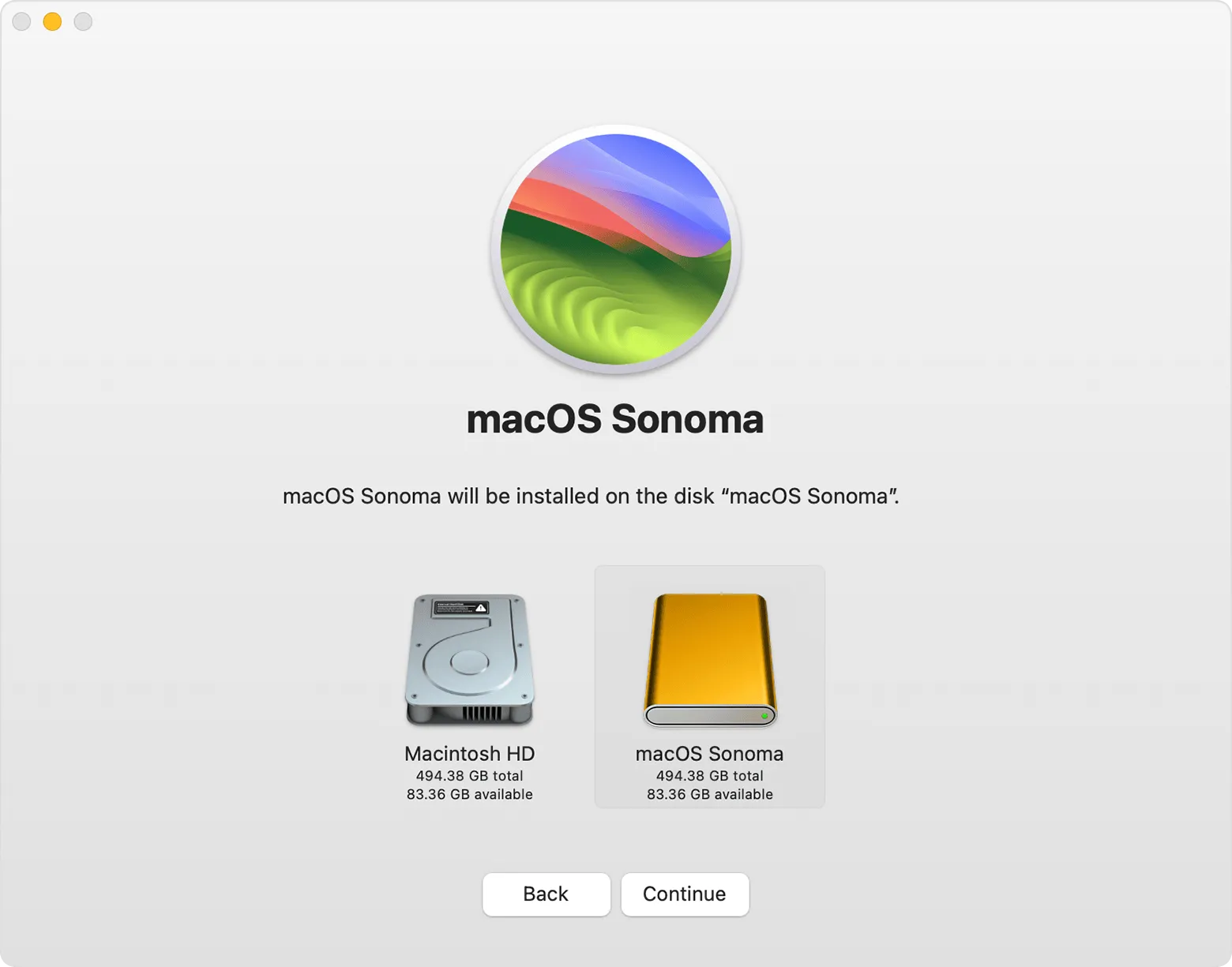
I have chosen a different path: I installed macOS entirely on my external drive. Believe me, this is much easier than the “move your home folder to an external drive” madness that all YouTubers are copying from each other. I won’t repeat the installation steps here because Apple has already documented them, and it’s very easy to do. You basically just:
- Connect your external SSD to your computer.
- Download macOS from the “App Store.”
- Run the installer and choose the external SSD when prompted.
- Complete the installation as you would normally.
On the next boot, macOS will automatically boot from the external drive. You can turn on FileVault to protect your files. You can still access your internal SSD and use it to store some files.
The main downside of this approach is that you can’t enable Apple Intelligence. This isn’t a significant loss for me. If you rely on Apple Intelligence, you can’t use an external SSD as your boot volume.
Additionally, you may need to buy a keyboard, mouse and webcam if you don’t already have them. In my case, I already had these lying around.